Booking Calendar
The booking calendar is the main scheduling view used to inspect availability, understand conflicts, and create bookings for marketplace or club offerings. It is designed to behave like a modern calendar application while still enforcing the hub's booking rules.
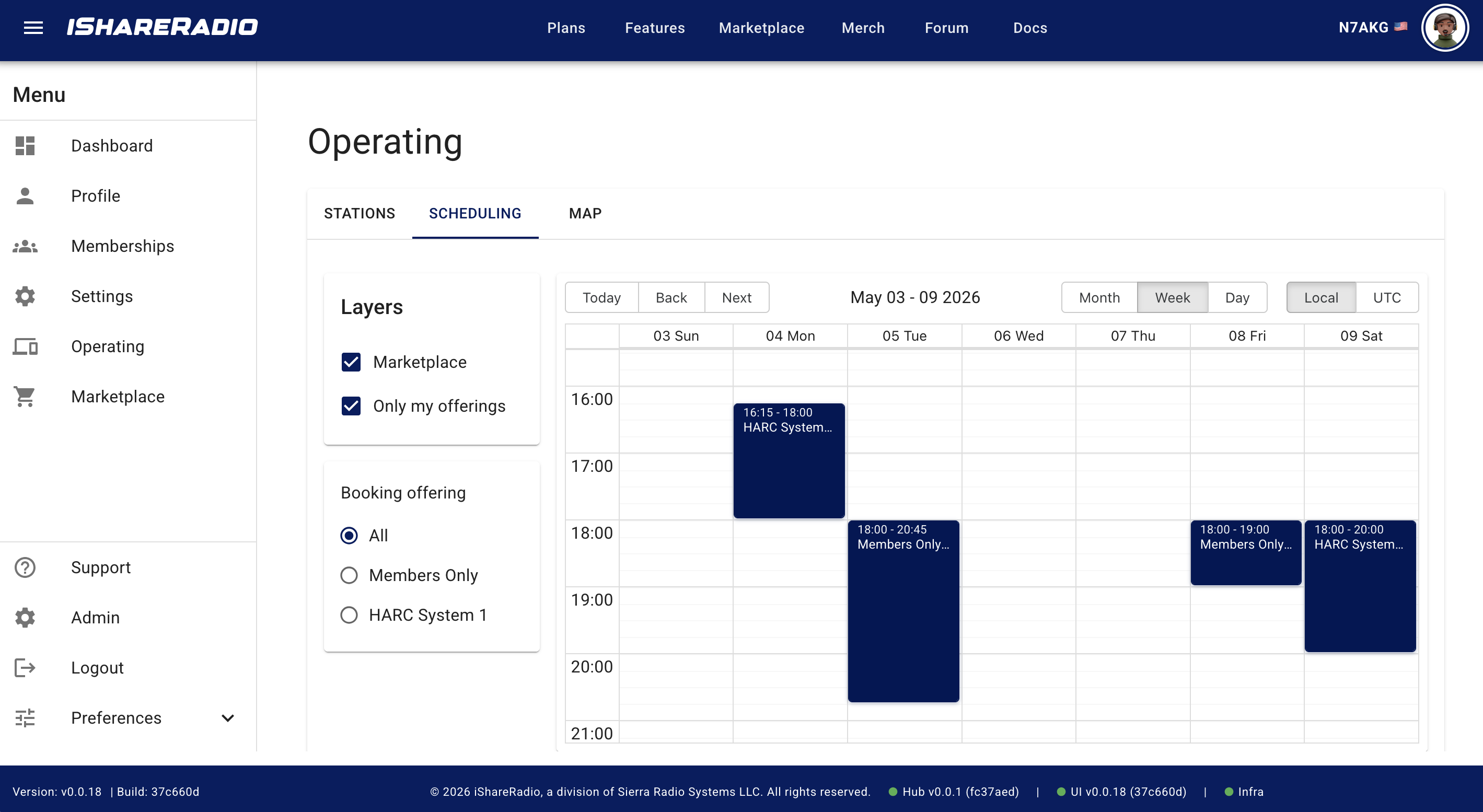
What the calendar is for
Use the calendar to:
- switch between
Month,Week, andDayviews - move backward and forward through time
- view your own bookings on the calendar
- view that offering's bookings and green availability overlay when focusing on a specific offering
- create either a single continuous booking or a recurring daily series
- inspect booking details by selecting a calendar entry
Layout overview
The scheduling page has two main areas:
- A left-side
Layerscard that controls which booking sources are visible. - The main calendar area on the right.
Above the calendar there is also a timezone toggle:
Localshows dates and times using your browser's local timezoneUTCshows the same booking data in UTC
Changing this toggle affects how dates and times are displayed in the calendar and booking dialog. The hub still stores and sends booking times in UTC.

Layers and what you can see
The Layers card lets you choose which booking sources are visible in passive view:
Marketplace Bookings- one checkbox per club you are a member of
When you are passively browsing the calendar, the UI shows bookings relevant to your current account context.
When you focus on one specific offering to make a booking, the calendar changes behavior:
- it shows only that offering's bookings for the visible date range (you no longer see everyone else's bookings unless
Allis selected in the offerings list) - it overlays availability windows for that offering as transparent green blocks so you can see when booking is allowed by the offering's schedule (see Availability overlay below)
- the hub may still reject a booking at submit time if another offering shares the same device and is booked for that interval (you may not see that other-offering block on the calendar in focused mode)
For club offerings, active club members can see callsign or username visibility where the booking policy allows it.
Month, week, and day views
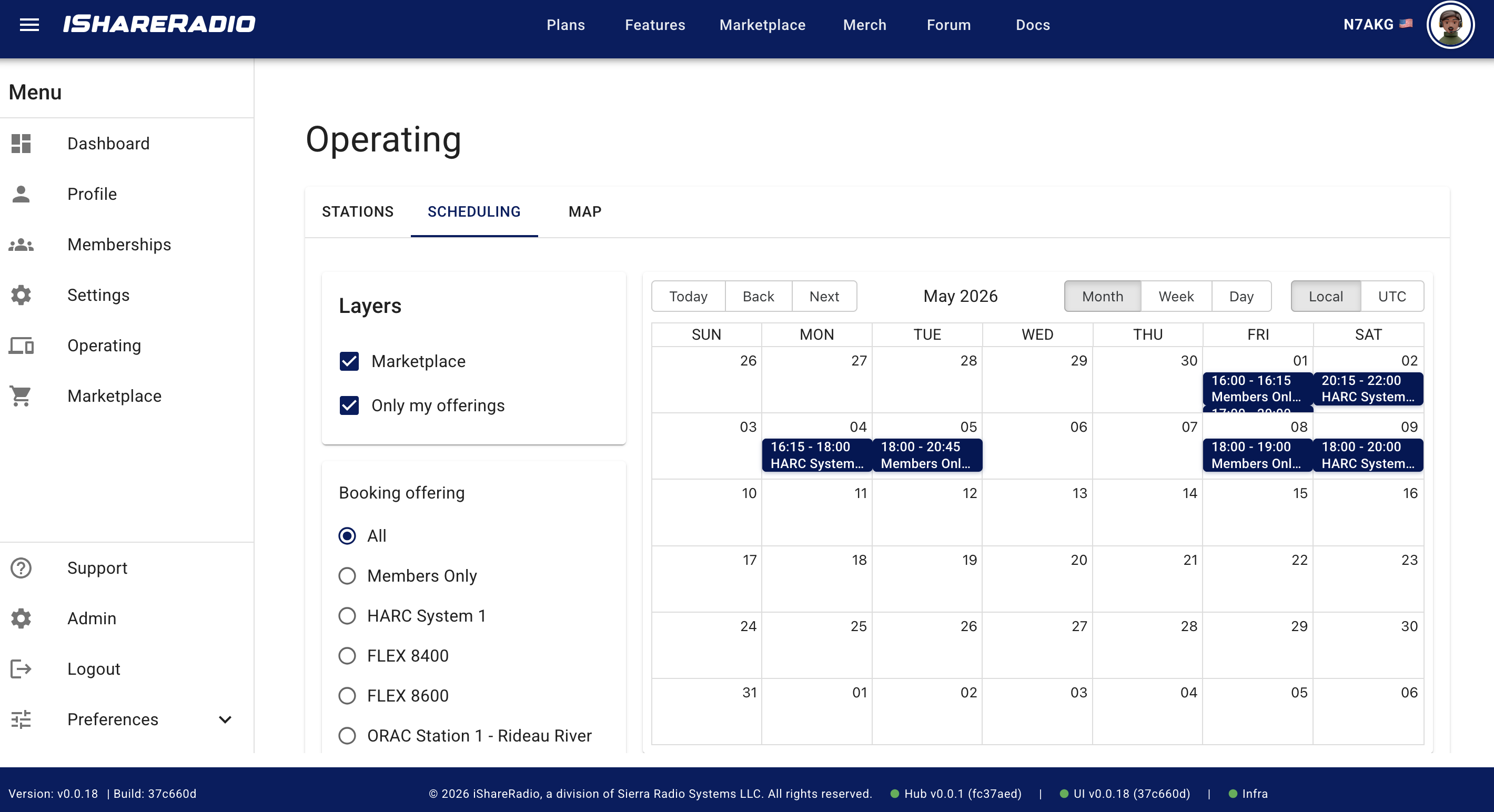
Month view
Month view is best for scanning which dates already contain bookings or blocked time.
Use it when you want to:
- spot busy days quickly
- see which dates already have activity
- jump to a target week or day before booking
Entries are rendered as all-day style rows in month view so busy dates are easy to spot.
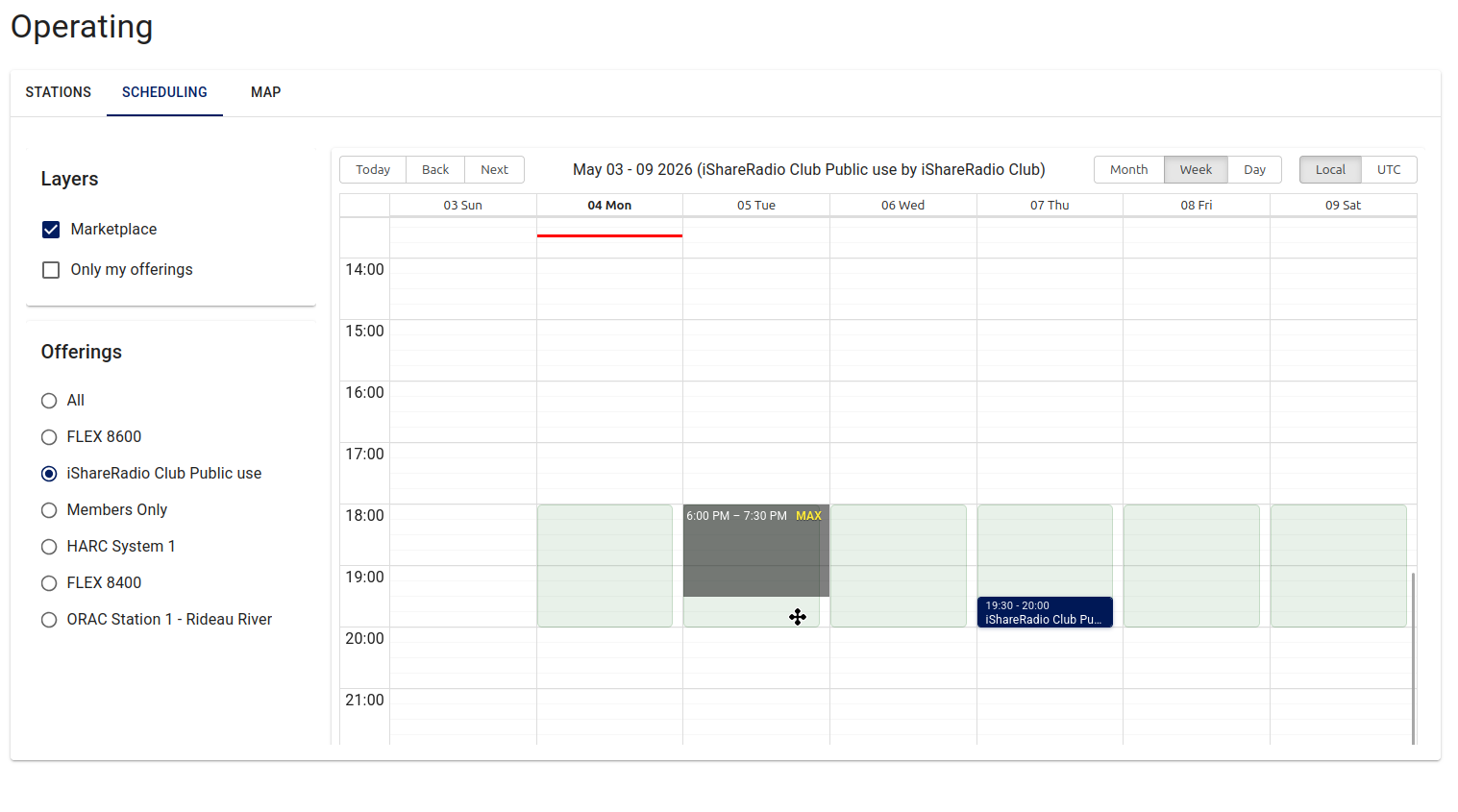
Week view
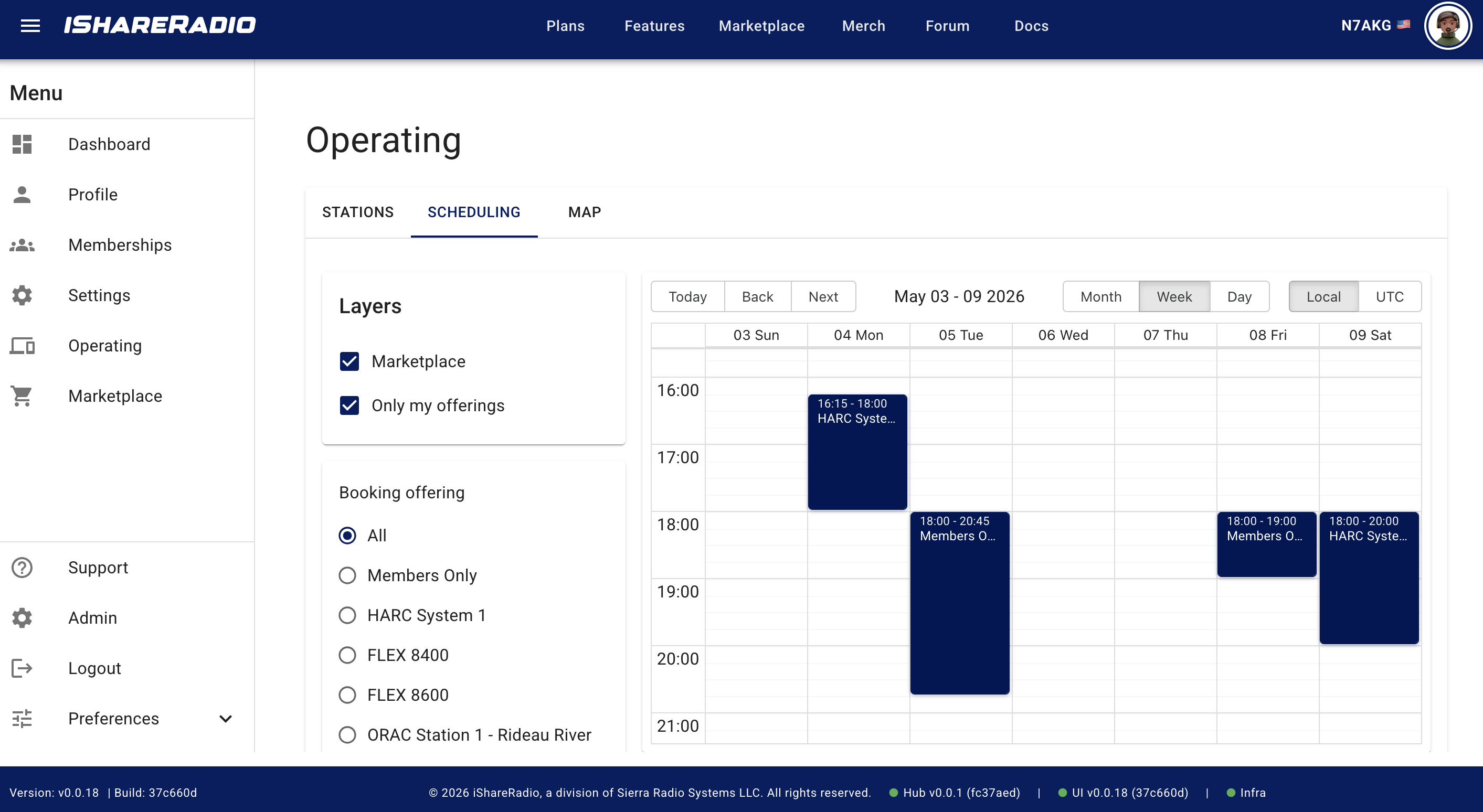
Week view is best for planning an actual booking window.
It shows:
- a time-based calendar grid
- 24-hour time labels
- overlapping bookings side-by-side where possible
- 15-minute or server-defined booking grid boundaries
Week view is usually the best view for comparing nearby openings across several days.
Day view
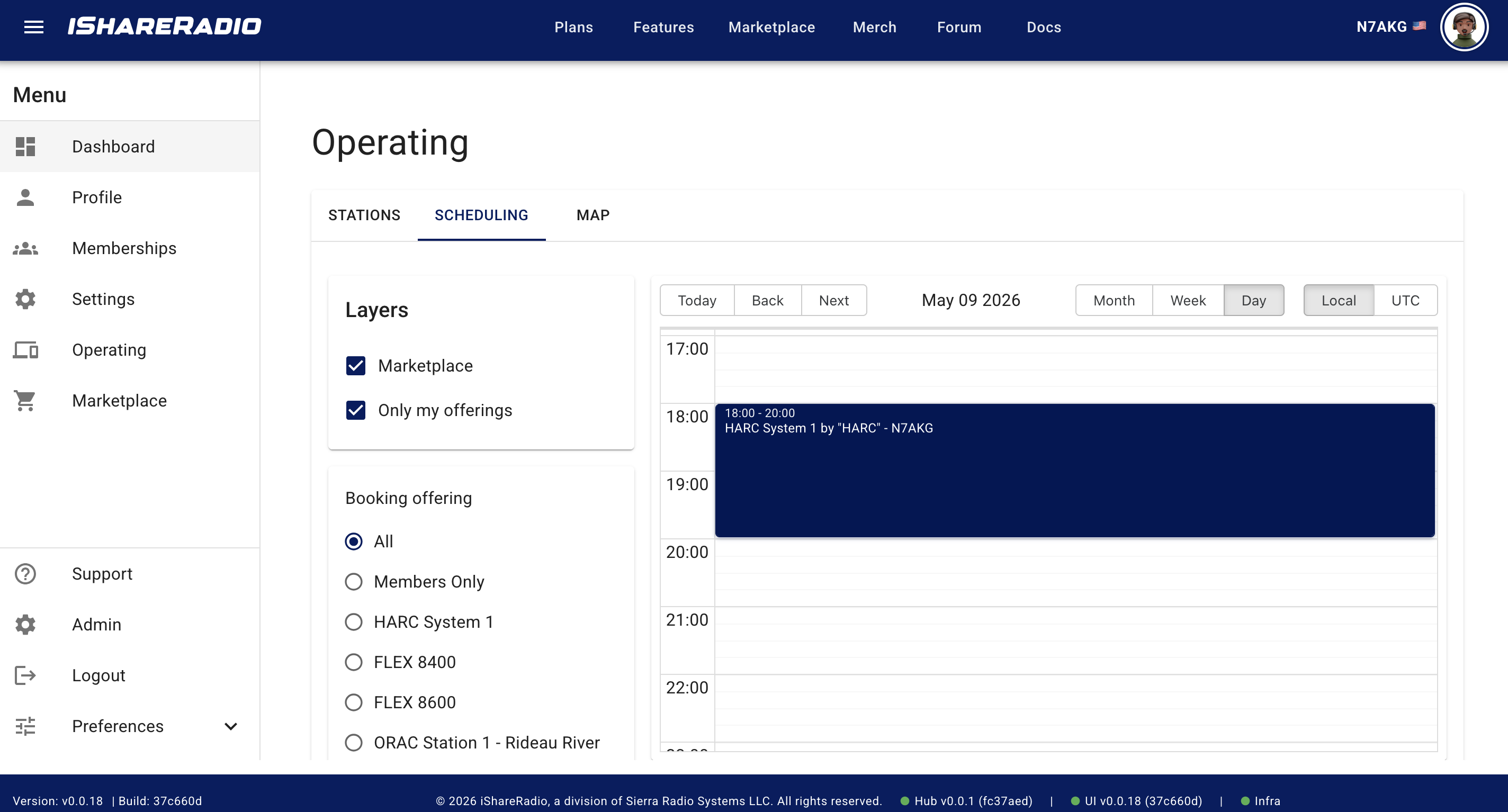
Day view is best when you need precise timing.
It is useful for:
- checking exact free time on one date
- comparing overlapping or adjacent bookings
- picking a start and end time with minimal clutter
The calendar scrolls to daytime hours by default, but you can still scroll earlier or later as needed.
Booking colors and visual meaning
The calendar uses color to distinguish your own bookings from other visible booking rows (exact shades are app-defined and may change slightly with theme updates):
- Your bookings (as the booker) are shown in a strong blue
- Bookings you can see on the same offering (for example, as the offer owner) use a distinct warm / orange-tinted style
- Other people's bookings in passive all-layers view use a neutral gray
- Availability in focused mode is a light transparent green overlay (not a solid booking block; see the next section)
Availability overlay (focused offering)
When you select one offering in the Offerings list (not All), the calendar is in focused mode. In that mode, the app draws the offering's declared available time windows as transparent green regions in the week or day time grid. That is bookable time by policy, not an existing booking.
How it works (high level):
- Availability comes from the offering's
available_timesrules on the hub. The client expands those rules into background-style events for the current calendar range. - The green blocks are intentionally minimal: they have no time label and no title so they do not look like another booking row. They are a tint you can read through, separate from the solid blocks used for real bookings.
- Past time is hidden: any part of a window that has already ended is not shown. If a window started earlier today but still extends into the future, only the remaining segment (from now onward) is shown.
- react-big-calendar treats these as background events, but the component still styles them with a green tint (the app does not use the older blue availability color in this view) so "free to book" is visually distinct from "already booked" blocks.
- In All / passive mode, the calendar does not paint this green overlay; you see booking blocks from the selected layers only.
How to create a booking
You can create a booking by selecting an empty time range on the calendar.
If you are already focused on an offering:
- the booking dialog opens for that offering directly
If you are in passive view:
- the booking dialog opens and asks which eligible non-marketplace offering to use
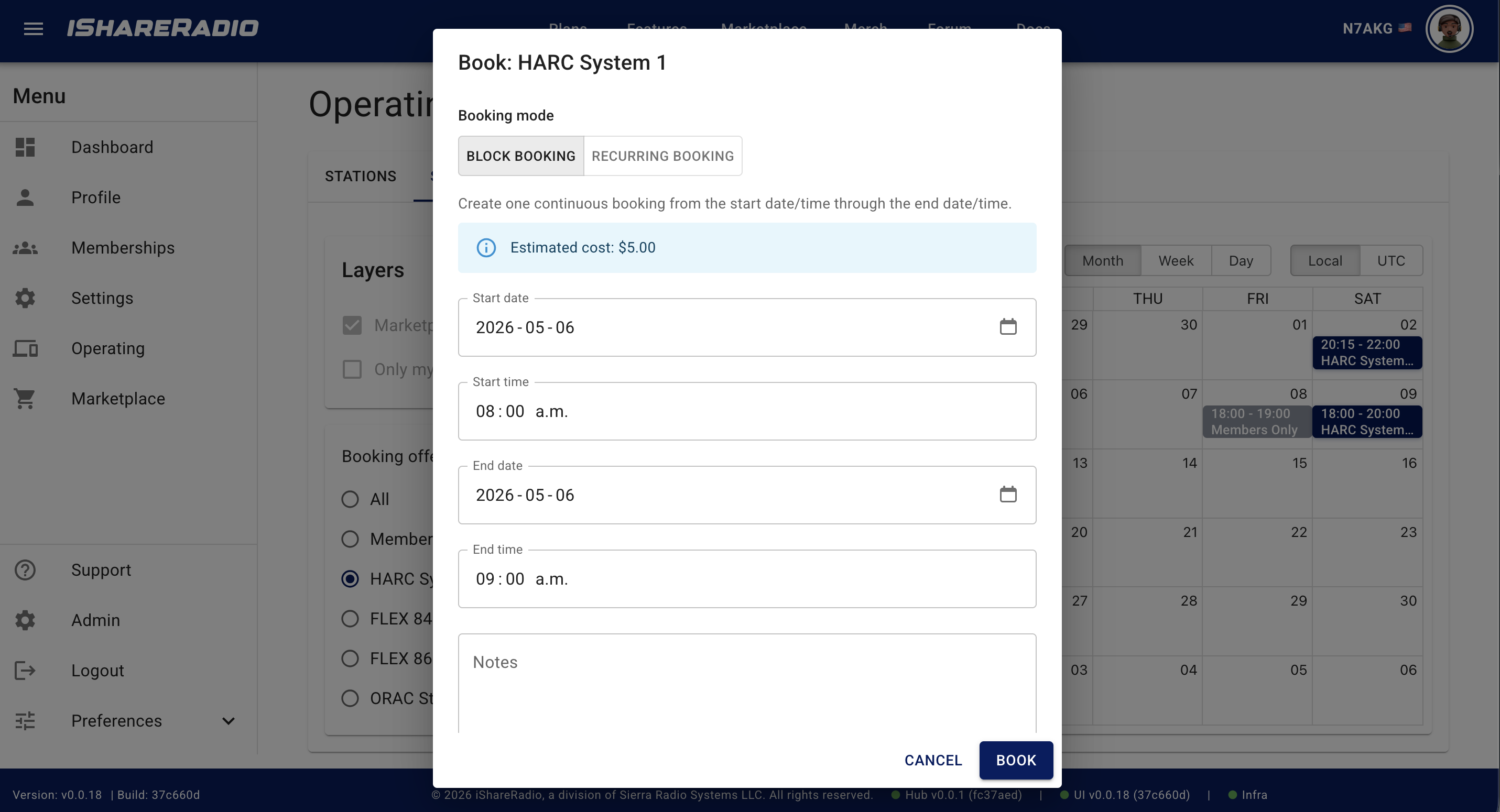
The booking dialog lets you choose between two booking modes:
Block bookingRecurring daily
Block booking
Block booking creates one continuous booking from the chosen start date and time to the chosen end date and time.
Use this when:
- you need one uninterrupted session
- the booking may span more than one day
Examples:
- one two-hour booking on a single afternoon
- one booking that starts one evening and ends the next morning
Recurring daily booking
Recurring daily creates one separate booking per day between the selected start and end dates.
Each daily booking uses:
- the same daily start time
- the same daily end time
Use this when:
- you want the same daily slot repeated across several days
- you do not want one continuous multi-day block
This mode creates individual daily bookings, not one continuous booking and not an infinite recurring series.
Time rules the UI respects
The calendar and booking dialog respect the hub's booking time grid.
That means:
- the booking interval is controlled by the hub
- the week/day calendar grid uses that server-defined step
- time fields in the dialog follow that same step
- the UI rejects start or end times that do not sit on the hub-defined booking boundary
The current implementation in the hub uses quarter-hour resolution, but the UI now reads this from the hub instead of hardcoding it.
Conflict visibility and booking prevention
The calendar is intentionally designed to make conflicts visible before you submit.
When you focus on an offering, the calendar shows:
- existing bookings for that offering only in the visible range
- the green availability overlay for bookable-by-policy time (see Availability overlay)
The calendar does not draw separate gray "busy" rows for other offerings that happen to share the same device; those conflicts are still enforced when you submit. The hub prevents booking submission when:
- the same offering is already booked for that time
- another booking on a shared device conflicts with the requested time
- the booking falls outside the offering's configured available time windows
- the offering is disabled
- the user does not meet booking credit requirements for a paid offer
Booking details and popups
Selecting a visible booking opens detail information for that row.
Depending on your role and the offering type, the UI may show:
- your own booking identity
- the booker's callsign or username for club-visible cases
- anonymous busy-state information when identity should stay hidden
Focused scheduling versus passive browsing
The calendar has two practical modes:
Passive browsing
Use passive mode when you want to browse upcoming bookings across enabled layers.
In passive mode:
- the calendar shows booking rows relevant to the selected layers
- you can still select an empty slot and start a booking
- the dialog asks which eligible offering should be used if one is not already focused
Focused scheduling
Use focused mode when you are booking one specific offering.
In focused mode:
- the calendar shows that offering's bookings plus the green availability overlay from its schedule
- shared-device conflicts with other offerings are not shown as extra busy rows on the calendar; rely on submit-time errors or choose All if you need a wider conflict picture across offerings
- this is the best mode for booking that offering within its published windows
Related behavior worth knowing
- The hub fetches bookings using the visible calendar range plus a forward-looking window for responsiveness.
- The calendar updates when relevant booking changes are pushed from the hub.
- Busy-time visibility follows the booking policy and privacy rules rather than exposing every user's identity.
For the formal booking rules, see the active booking policy page in the hub documentation.