iSR Client GUI Layout
This guide explains the iSR Client graphical user interface, focusing on the status indicators and what they mean.
The iSR Client interface consists of several key components that help you monitor and manage your connection. The annotated diagram below shows the main elements of the GUI with numbered references:
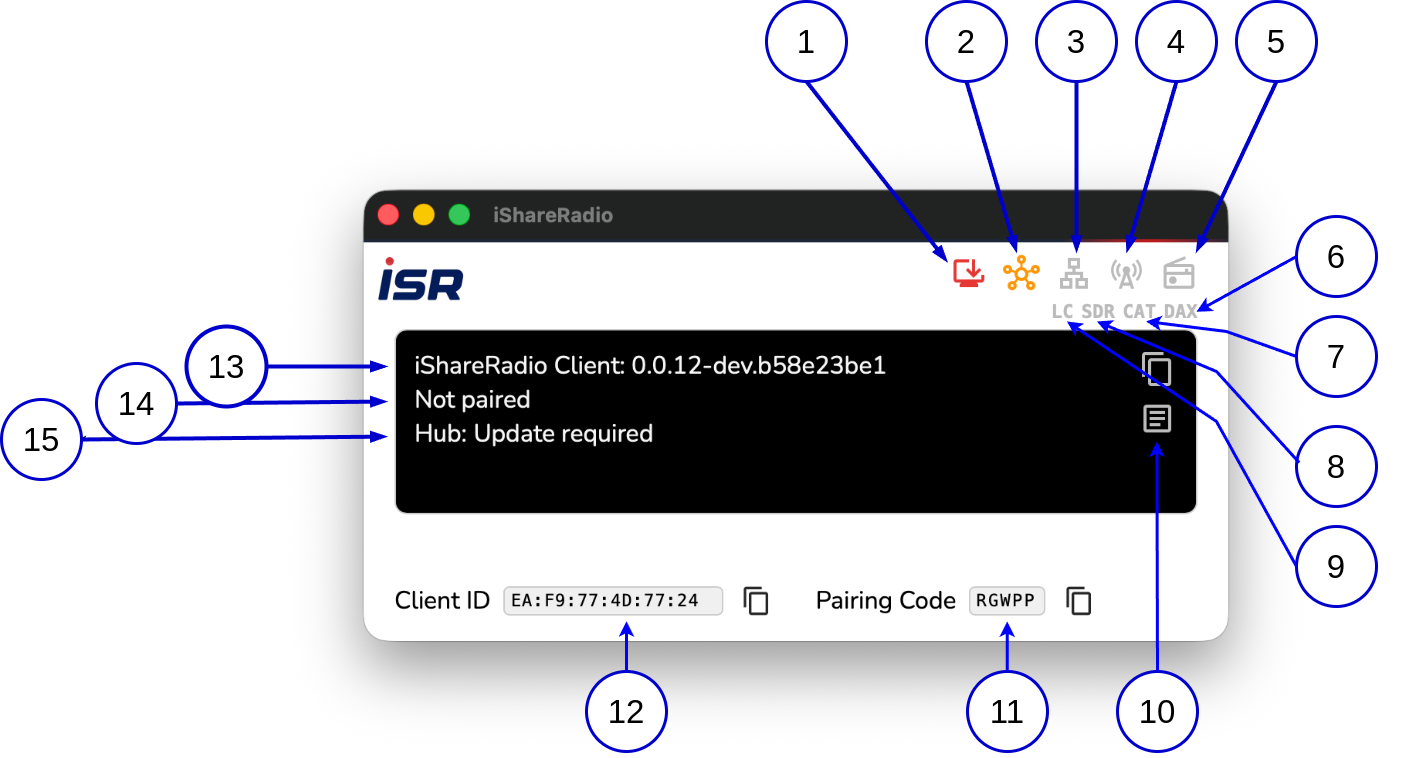
The numbered components in the diagram above represent the following GUI features. Refer to the diagram to locate each component:
| Number | Component | Description |
|---|---|---|
| 1 | Software Download | Client software download status indicator. Shows orange when an optional update is available, red when an upgrade is required, or gray when no update is needed. Clickable when orange or red to download the update. |
| 2 | Hub Connection | Hub connection status indicator. Shows green (connected), blue (TCP only), red (failed), or gray (initializing). |
| 3 | LAN | LAN service status indicator. Shows green (active), red (failed), or gray (not running). |
| 4 | Radio Connection | Radio client connection status indicator. Shows green (connected), red (failed), or gray (not connected). |
| 5 | SmartSDR Client Connection | SmartSDR client connection status indicator (tower icon). Shows green (clients connected), blue (ready, no clients), red (failed), or gray (not configured). |
| 6 | SmartSDR DAX | DAX connection status text indicator. Displays "DAX" in green when DAX client is connected, gray when disconnected. |
| 7 | SmartSDR CAT | CAT connection status text indicator. Displays "CAT" in orange when CAT client is connected, gray when disconnected. |
| 8 | SmartSDR | SmartSDR connection status text indicator. Displays "SDR" in blue when SmartSDR client is connected, gray when disconnected. |
| 9 | License Control | License Control service status text indicator. Displays "LC" with color indicating service status (green when active, gray when inactive). |
| 10 | Status Webpage  |
Clickable icon that opens the local web status page showing detailed client status information. Appears when hovering over the info box. |
| 11 | Pairing Code | Text input field displaying the temporary pairing code used to pair the iSR Client to your Hub account. Only visible when the client is not paired. |
| 12 | Device ID | Text input field displaying the iSR Client device identifier. This unique ID identifies your iSR Client device. |
| 13 | Client Version | Text display showing the version of the iSR Client software currently running. Displayed in the info box along with pairing and connection status. |
| 14 | System status message | Info box text area displaying pairing status and other system messages. Shows client version, pairing status (paired/not paired), and username/callsign when paired. |
| 15 | Hub Connectivity message | Info box text area displaying the current Hub connection status message. Shows detailed connection state (e.g., "Hub: Connected", "Hub: Connection failed", etc.). |
Status LEDs Overview
The iSR Client displays five status LEDs in the top right corner of the application window. These LEDs provide real-time feedback about the connection status and help you understand the current state of your iSR Client connection.
![Screenshot: iSR Client showing five status LEDs in top right corner]
Software Download  (1)
(1)
The Browser Updated icon shows when client software updates are available or required.
![Screenshot: iSR Client with Software Download LED showing different states]
| State | Color | Description |
|---|---|---|
| Optional Update Available | Orange | A new version of the iSR Client is available. You can continue using your current version, but upgrading is recommended. Click the icon to download the update. |
| Upgrade Required | Red | Your current iSR Client version is no longer compatible. You must upgrade before you can proceed with certain operations. Click the icon to download the required update. |
| No Update Needed | Gray | Your iSR Client is up to date. No action required. |
Hub Connection (2)
The Hub icon shows the connection status to the iShareRadio Hub server.
![Screenshot: iSR Client with Hub LED showing different states]
| State | Color | Description |
|---|---|---|
| Connected | Green | Full connection established (WebSocket and HTTP working). The iSR Client is fully connected to the Hub and can send/receive all types of messages. This is the normal operating state when everything is working correctly. |
| TCP Only | Blue | TCP connection only (partial connection). The iSR Client has a TCP connection but WebSocket may not be fully established. Some features may be limited in this state. |
| Retrying/Connecting | Orange | Connection retrying or in progress. The iSR Client is attempting to establish or restore the connection to the Hub server. |
| Failed/Error | Red | Connection failed or error. The iSR Client cannot connect to the Hub server. Check your internet connection and Hub server status. May indicate authentication issues, network problems, server unavailability, upgrade required, or other connection errors. |
| Unknown/Initializing | Gray | Not connected or initializing. The iSR Client is starting up or has not yet attempted to connect. This is normal during application startup. |
LAN (3)
The LAN icon shows the LAN service status.
![Screenshot: iSR Client with LAN LED showing different states]
| State | Color | Description |
|---|---|---|
| Active | Green | LAN service is running and active. The service is operational and ready to discover radios on your local network. This allows the iSR Client to find and connect to radios on the same network. |
| Failed | Red | LAN service failed. The service encountered an error and cannot function. Local radio discovery may not work. Check network permissions and firewall settings. |
| Not Running/Initializing | Gray | LAN service not running or initializing. The service hasn't started yet or is being initialized. This is normal during application startup. |
SmartSDR Client Connection  (5)
(5)
The Cell Tower icon shows the proxy service status for remote connections.
![Screenshot: iSR Client with Tower LED showing different states]
| State | Color | Description |
|---|---|---|
| Clients Connected | Green | Active proxies with clients connected. Proxy services are running and have active client connections (e.g., SmartSDR connected). Remote radio control is operational. |
| Ready, No Clients | Blue | Proxy service exists but no clients are currently connected. Proxy services are running and ready, but no client applications (like SmartSDR) are currently connected. The radio connection is established, but waiting for a client to connect. |
| Failed | Red | All proxies have failed. Proxy services encountered errors and cannot function. Remote connections cannot be established. Check network connectivity and radio connection status. |
| Not Configured/Initializing | Gray | No proxies configured or initializing. No proxy services are active yet. This is normal when no radio connection has been established. |
Radio Connection (4)
The Radio icon shows the radio client connection status.
![Screenshot: iSR Client with Radio LED showing different states]
| State | Color | Description |
|---|---|---|
| Connected | Green | TCP proxy active (radio client connected and communicating). The iSR Client has successfully established a connection to the radio. Radio control commands can be sent and received. This indicates the radio tunnel is operational. |
| Failed | Red | All proxies failed (radio client cannot connect). The connection to the radio has failed. Radio control is not available. Check that the radio is online, your subscription allows radio access, and network connectivity is working. |
| Not Connected/Initializing | Gray | No proxies active or initializing. No radio connection has been established yet. This is normal when you haven't connected to a radio. |
Client Type Indicators
The iSR Client displays text indicators below the status LEDs showing which client types are currently connected:
![Screenshot: iSR Client showing client type indicators]
| Indicator | Client Type | Connected State | Disconnected State |
|---|---|---|---|
| SDR | SmartSDR | SDR (blue) | SDR (gray) |
| CAT | CAT (Computer Aided Transceiver) | CAT (orange) | CAT (gray) |
| DAX | DAX (Digital Audio Exchange) | DAX (green) | DAX (gray) |
| LC | License Control service | LC (green, active) | LC (gray, inactive) |
These indicators help you quickly see which client applications are currently connected to your iSR Client and using the radio connection. The color changes in real-time as clients connect or disconnect.
Understanding Status LED Combinations
Different combinations of LED states indicate different operational conditions:
Fully Connected State
![Screenshot: iSR Client with all LEDs green - fully connected state]
| LED | State | Color |
|---|---|---|
| Software Download | Up to date | Gray |
| Hub | Connected | Green |
| LAN | Active | Green |
| Tower | Clients connected | Green |
| Radio | Connected | Green |
Everything is working perfectly: The iSR Client is fully connected to the Hub, LAN service is active, SmartSDR clients are connected, and the radio connection is established and operational.
Connecting State
![Screenshot: iSR Client with Hub and LAN green, Tower blue, Radio gray - connecting state]
| LED | State | Color |
|---|---|---|
| Software Download | Up to date | Gray |
| Hub | Connected | Green |
| LAN | Active | Green |
| Tower | Ready, no clients | Blue |
| Radio | Not connected | Gray |
Radio connection established, waiting for client: The iSR Client is connected to the Hub and radio. Proxy services are ready, but waiting for SmartSDR or another client application to connect.
Partial Connection State
![Screenshot: iSR Client with Hub blue, others gray - partial connection state]
| LED | State | Color |
|---|---|---|
| Software Download | Up to date | Gray |
| Hub | TCP only | Blue |
| LAN | Not running | Gray |
| Tower | Not configured | Gray |
| Radio | Not connected | Gray |
Partial Hub connection only: TCP connection to Hub exists but not fully operational. Other services may not be available yet.
Error States
![Screenshot: iSR Client with Hub green, LAN green, Tower red, Radio red - error state]
| LED | State | Color |
|---|---|---|
| Software Download | Up to date | Gray |
| Hub | Connected | Green |
| LAN | Active | Green |
| Tower | Failed | Red |
| Radio | Failed | Red |
Connection issues: Hub connection is working and LAN service is active, but proxy/radio connections have failed. Check radio status and network connectivity.
Info Box and Status Messages
The info box (Component 14) displays system status messages including:
![Screenshot: iSR Client info box]
- Client Version: The version of iSR Client software currently running
- Pairing Status: Shows "Paired" or "Not paired" status
- Username and Callsign: Displayed when paired (e.g., "Paired with username, CALLSIGN")
- Hub Connectivity Message (Component 15): Detailed Hub connection status (e.g., "Hub: Connected", "Hub: Connection failed")
The info box also includes action icons that appear when you hover over it:
- Copy Icon Copies comprehensive status information to clipboard
- Status Webpage Icon (Component 10) Opens the local web status page in your browser
Input Fields
The iSR Client displays input fields at the bottom of the window:
![Screenshot: iSR Client input fields]
- Device ID (Component 12): Displays the unique iSR Client device identifier. Includes a copy button to copy the Device ID to clipboard.
- Pairing Code (Component 11): Displays the temporary pairing code when the client is not paired. Only visible when unpaired. Includes a copy button to copy the pairing code to clipboard.
- Paired Indicator A green link icon appears next to the Device ID when the client is successfully paired to your Hub account.
Using Status LEDs for Troubleshooting
The status LEDs are your first indicator of what's working and what needs attention:
- Check Software Download LED: If red, you must upgrade before proceeding. If orange, an optional update is available.
- Start with the Hub LED: If it's not green, fix the Hub connection first
- Check LAN LED: Should be green for local network discovery to work
- Monitor Tower LED: Shows when proxy services are ready and SmartSDR clients are connected
- Watch Radio LED: Indicates when radio control is actually available
Gathering Support Information
When you need support for the iSR Client, you can gather comprehensive status information directly from the application. The iSR Client provides tools to help you collect all the relevant information needed for troubleshooting.
For detailed instructions on gathering support information, including how to use the clipboard copy feature and what information to include when contacting support, see iSR Client Support.
Next Steps
- Adding a Radio to Your Account: Learn how to register a radio
- Adding an iSR Client to Your Account: Learn how to pair an iSR Client
- Initiating a SmartSDR connection: see how status LEDs change.
- iSR Client Software Trains: Understand version requirements