Windows Installer
Terms and Privacy
By installing the iSR Client on your computer, you understand and agree to the Terms of Service and Privacy Policy of the iShareRadio platform.
The iSR Client connects devices on your local network to the iShareRadio Hub. Once proxied and paired to an Operator on the Hub, those devices can be controlled, managed, and integrated with alerting and metrics.
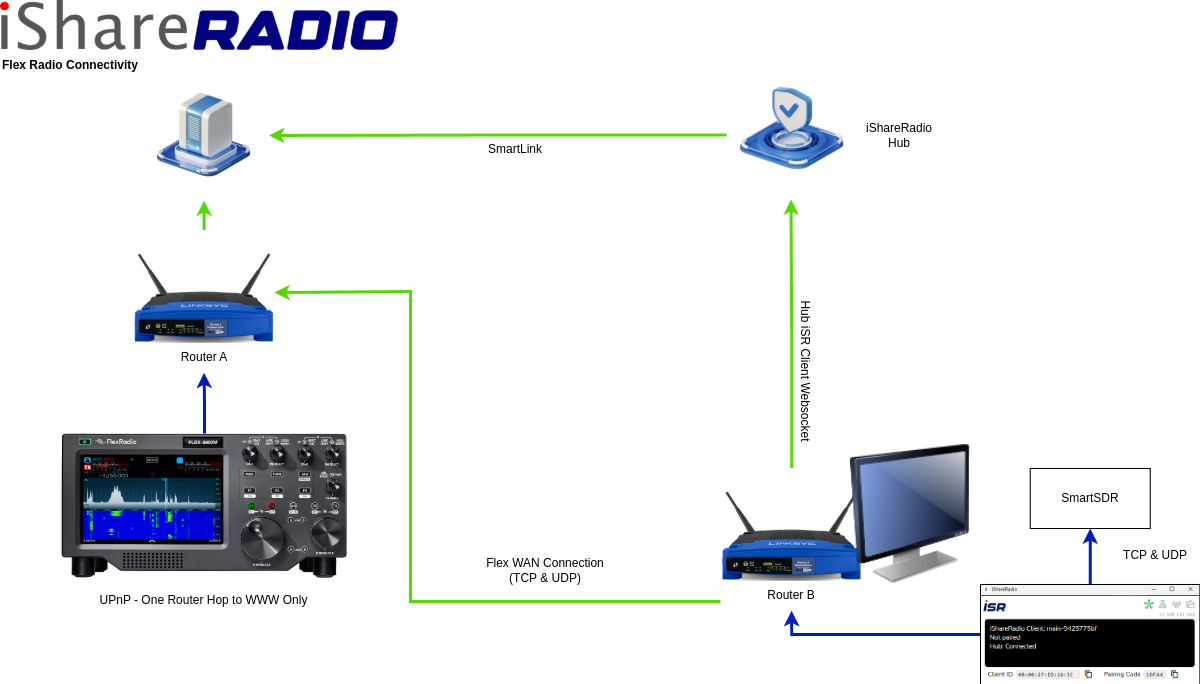
The iSR Client can run on the same Windows PC as your local hardware, or on another machine on your network so long as it can reach those devices.
How the Proxy Works
The iSR Client is a secure, intelligent proxy for radios and shack automation on your LAN. It communicates with local devices, understands their configuration, controls switches, relays, and collects readings. The Hub does not directly connect to your local devices and waits for the iSR Client to send status and reading information. The Hub can also send instructions to control and set various features on connected modules.
The Operator must pair the iSR Client first, then pair (add device) each proxied device.
Installing iSR Client on Windows
The Windows MSI installer will perform the following actions:
- Install the
isr-clientapplication - Register a Windows service that runs the iSR Client automatically
- Configure automatic update checks from the iSR Client release server
Requirements: Windows 10 or later (64-bit)
Installation Steps
- Download the Windows MSI package from the Hub Software tab.
- Run the installer and follow the on-screen prompts.
- When installation completes, the iSR Client service starts automatically.
Check the Windows service is running
You can check the iSR Client is running by opening its web status page:
http://localhost:8111
Logs
When run as a Windows service, logs are written under the iSR Client program data directory. When run manually, logs are written under %USERPROFILE%\.ishareradio\.