Station Controller Installer (Raspberry Pi)
Terms and Privacy
By installing the iSR Client on your computer, you understand and agree to the Terms of Service and Privacy Policy of the iShareRadio platform.
The iSR Client proxies one or more Station Controllers on your local network to the iShareRadio Hub. Once proxied and paired to an Operator on the Hub, the Station Controller can be controlled, managed, and integrated with alerting and metrics.
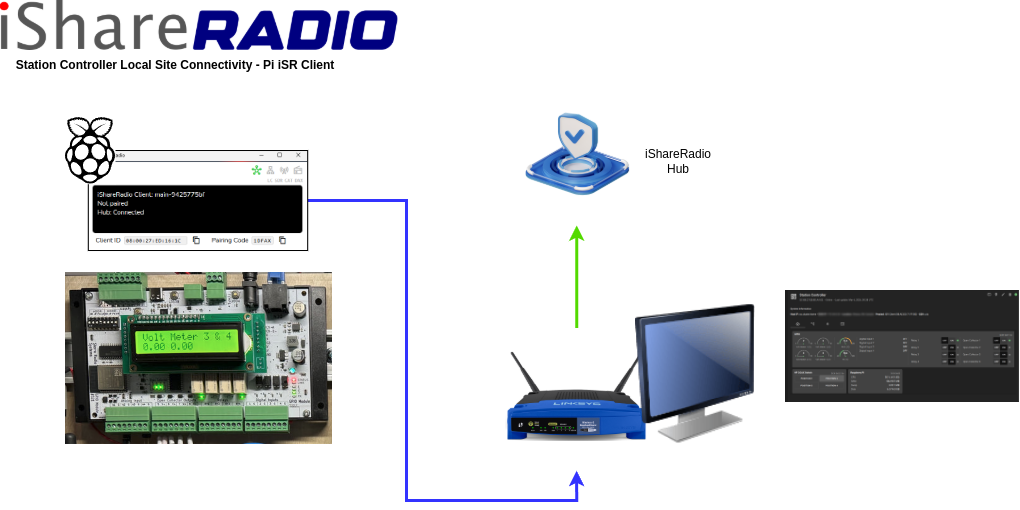
Blue: LAN, Green: WAN
The iSR Client can be installed on the Station Controller Raspberry Pi or elsewhere on your network so long as it can reach the Station Controller. The simplest approach is to install it on the Raspberry Pi.
How the Proxy Works
The iSR Client is a secure, intelligent proxy for the Station Controller. It communicates with Station Controller modules, understands their configuration, controls switches and relays, and collects readings. The Hub does not directly connect to the Station Controller; it waits for the iSR Client to send status and reading information and can send instructions to control modules.
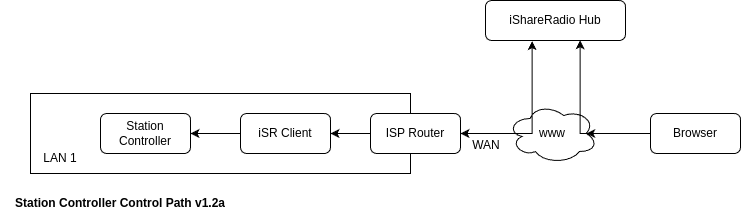
The Operator must pair the iSR Client responsible for proxying the Station Controller first, then pair (add device) the Station Controller.
iSR Client and Node-RED
The Hub lets you choose whether Node-RED is disabled (default) or not when pairing a Station Controller.
For the iSR Client to manage a Station Controller, it connects to the Raspberry Pi and disables Node-RED by default. Only one application can control the serial port at a time.
Advanced setups can split management between Node-RED and the iSR Client when the Station Controller uses multiple serial port configurations.
Restoring Node-RED
To use Node-RED again, stop and disable the iSR Client, then enable and start the Node-RED service. Reconnecting the iSR Client to the Station Controller will disable Node-RED again.
sudo systemctl stop isr-client
sudo systemctl disable isr-client
sudo systemctl enable nodered
sudo systemctl start nodered
Installing iSR Client on the Station Controller
The Debian package installer will perform the following actions:
- Install the
isr-clientexecutable - Install a systemd service that runs the iSR Client as a service
- Install a systemd timer that runs
apt-get upgrade isr-clientdaily when the iShareRadio APT source is configured
Requirements: Raspberry Pi OS 11 (Bullseye) or 12 (Bookworm) on arm64 (Pi 3/4/5 and compatible boards) with Python 3.
Install with apt
Use the iShareRadio install script. It detects arm64 on the Station Controller Pi, configures the APT repository, and installs isr-client with dependencies. See the Raspberry Pi installer for the same steps on other Pi setups.
One-time setup on the Station Controller Pi:
The installer enables and starts the isr-client systemd service and the daily APT upgrade timer.
To upgrade later:
You can check the iSR Client is running by opening its web status page:
http://your-station-controller-ip:8111
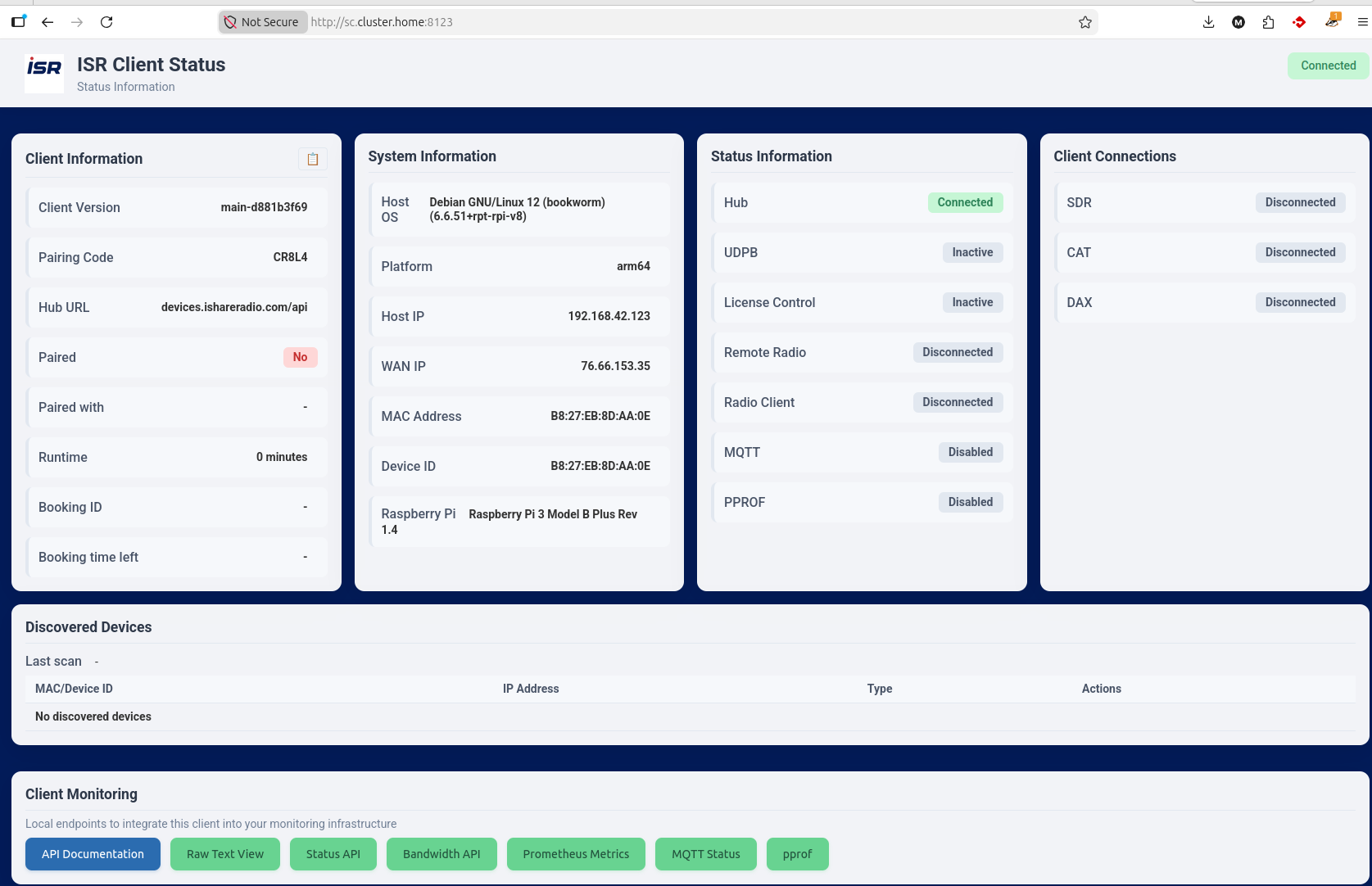
Running Console Mode Manually
If you want to run the iSR Client on a headless Linux computer then you can use the --console flag. This is useful for troubleshooting or running the iSR Client on demand. Ensure you have stopped and disabled the systemd iSR Client service beforehand.
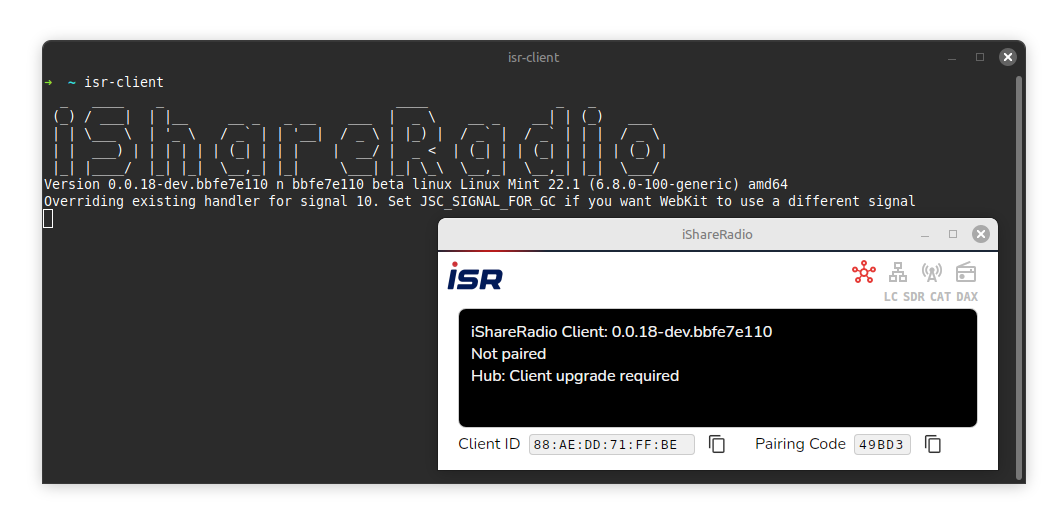
Next steps
After installation, pair the Station Controller on the Hub.
Logs
For Debian installation the iSR Client will log to $USER/.ishareradio/ when run manually from the console and /var/log/ishareradio/ when run as a systemd service.