Marketplace
The Marketplace is where you discover public offerings (stations you can use), check whether they are available right now, and then either connect immediately or schedule time for later.
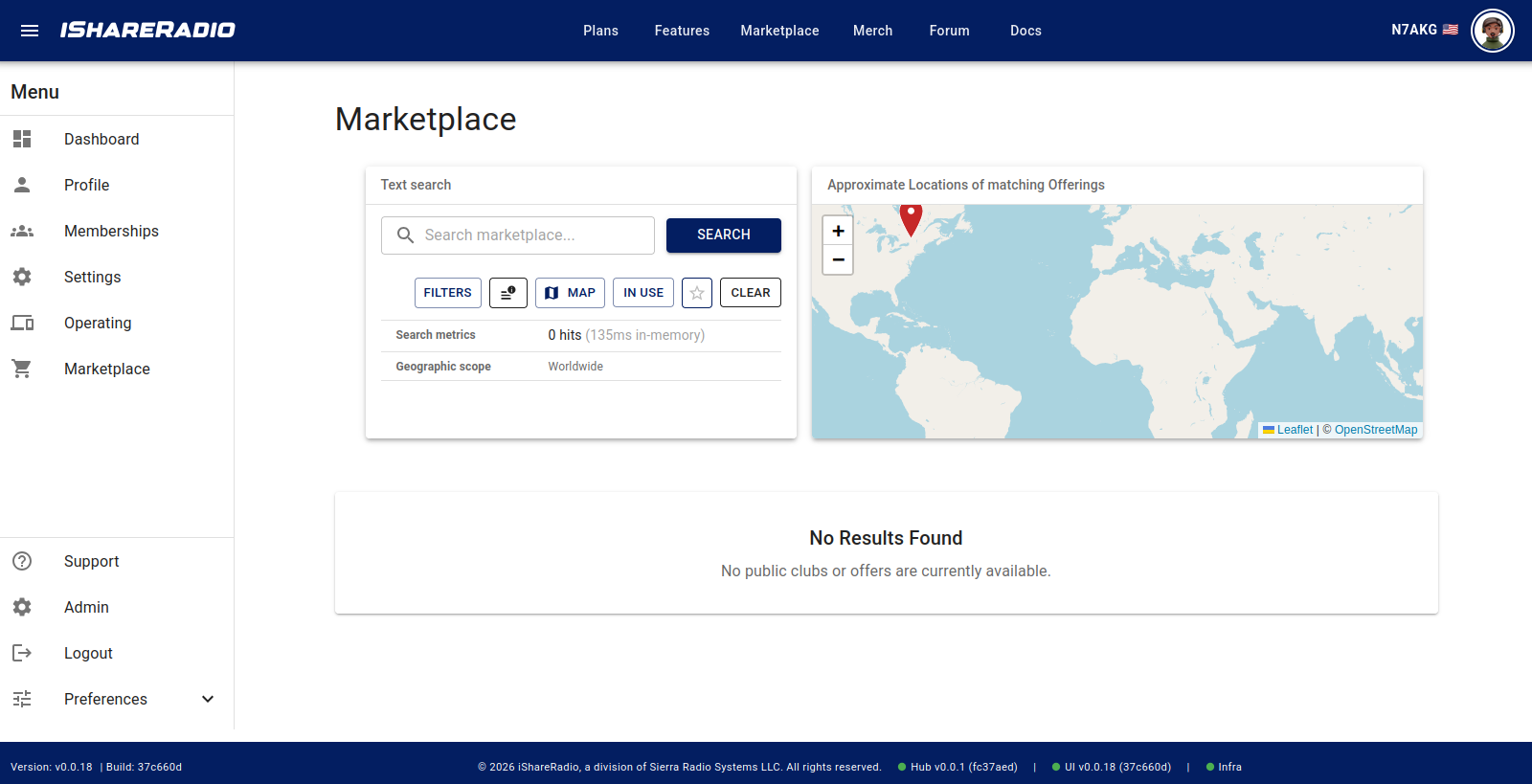
What you'll see
The Marketplace brings a few things together:
- Public clubs you can browse (and join, if available)
- Public offerings you can search, filter, and open
- A map to help you explore offerings by location
- A strip/list of offering cards that show availability and actions
Find an offering
Search bar
Use the search bar to quickly narrow down results. Search can match things like:
- offering name
- club name
- owner name
- device name / device id
- radio make or model text that's part of the listing
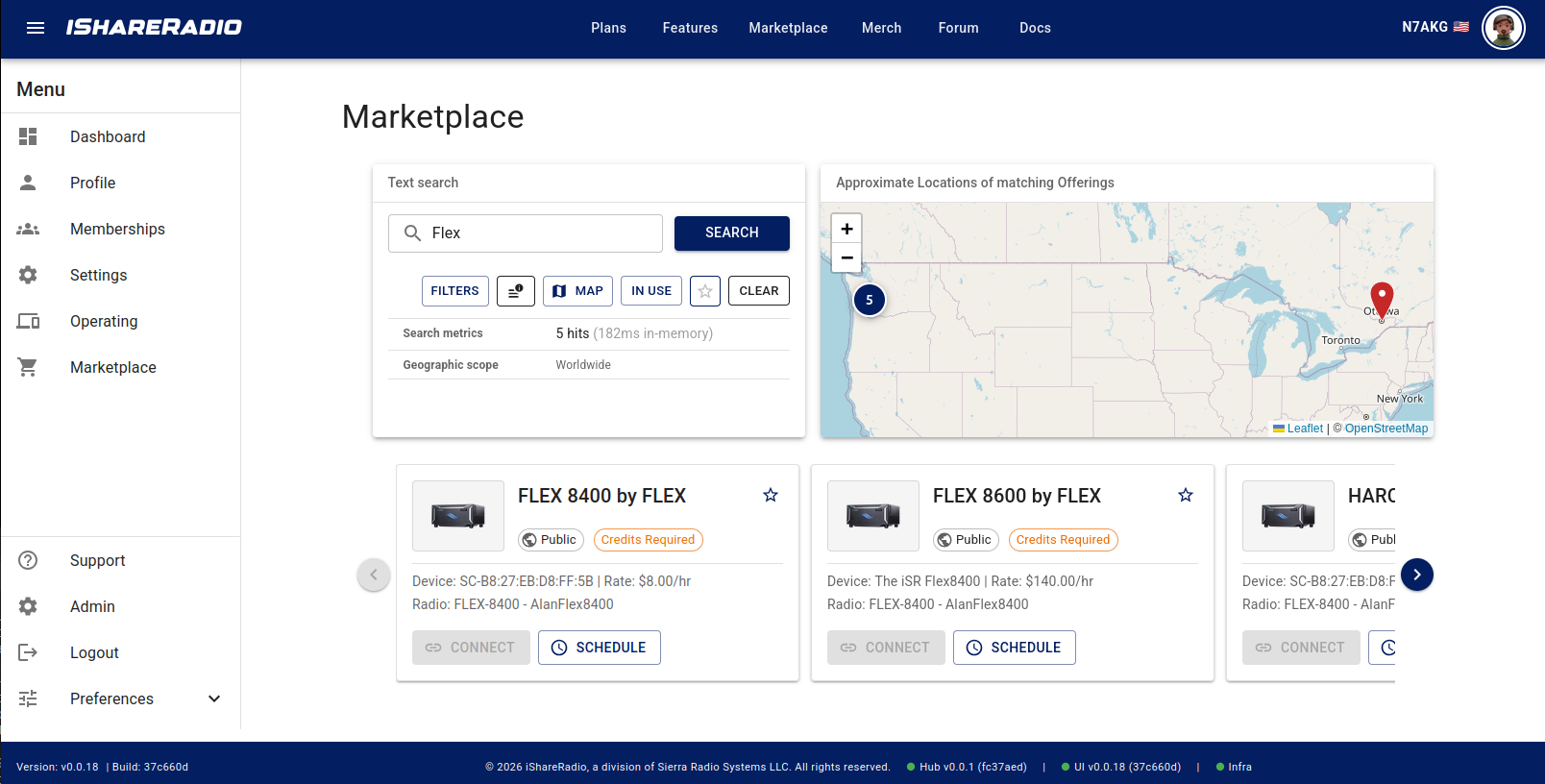
Filters (advanced search)
Select Filters to narrow results by time window or hardware characteristics.
Common filters include:
Start DateandEnd DateDaily Start Time/Daily End Time(optional)Device TypeRadio Make / Model
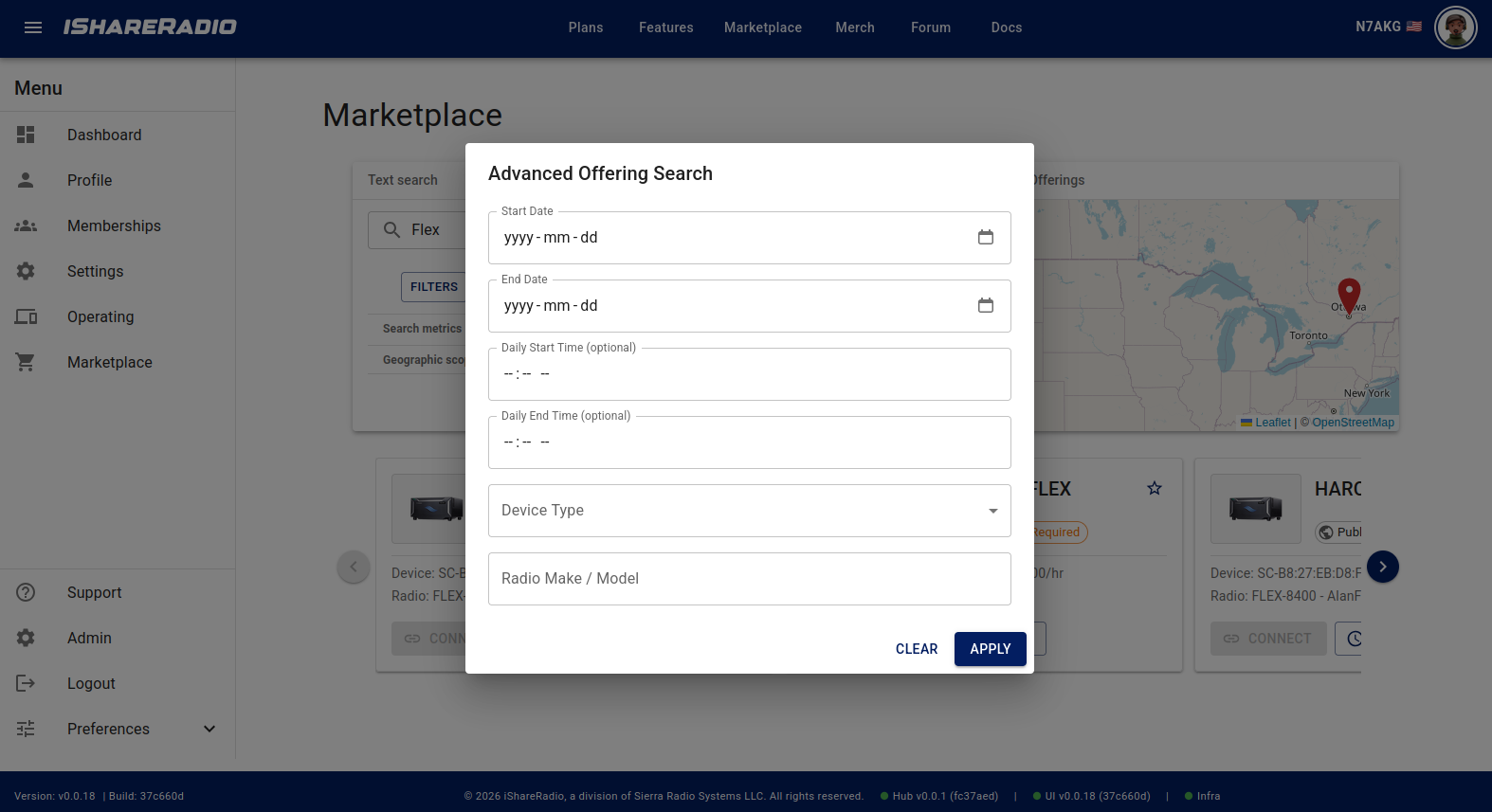
Map, IN USE, and Clear
The toolbar includes a few quick toggles:
- Map: locks the search area to the part of the map you're viewing (pan/zoom the map, then search within that area).
- IN USE: focuses results on offerings you are actively using (for example, an active booking or a live connection).
- Clear: resets your search text and filters.
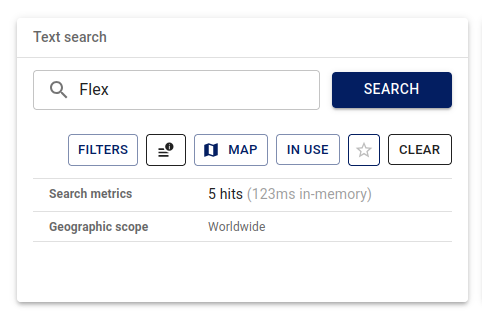
Marketplace favorites (starred offerings)
If you're signed in, you can star an offering so it's easy to find again.
- The star is on each offering card near the top.
- You can also switch to a favorites-only view using the star control in the Marketplace toolbar (once you have at least one favorite).
You can also access your favorites from My Shack → OFFERINGS, where they appear as a set of chips that jump you back to the Marketplace for that offering.
Understand offering cards
Each offering appears as a card. The most important part of the card is the status chip, which tells you whether the station is available and what you can do next.
The hub computes card state from live device status, your bookings, shared-radio conflicts, client availability, credits, license-control readiness, and offering hours.
Common status chips
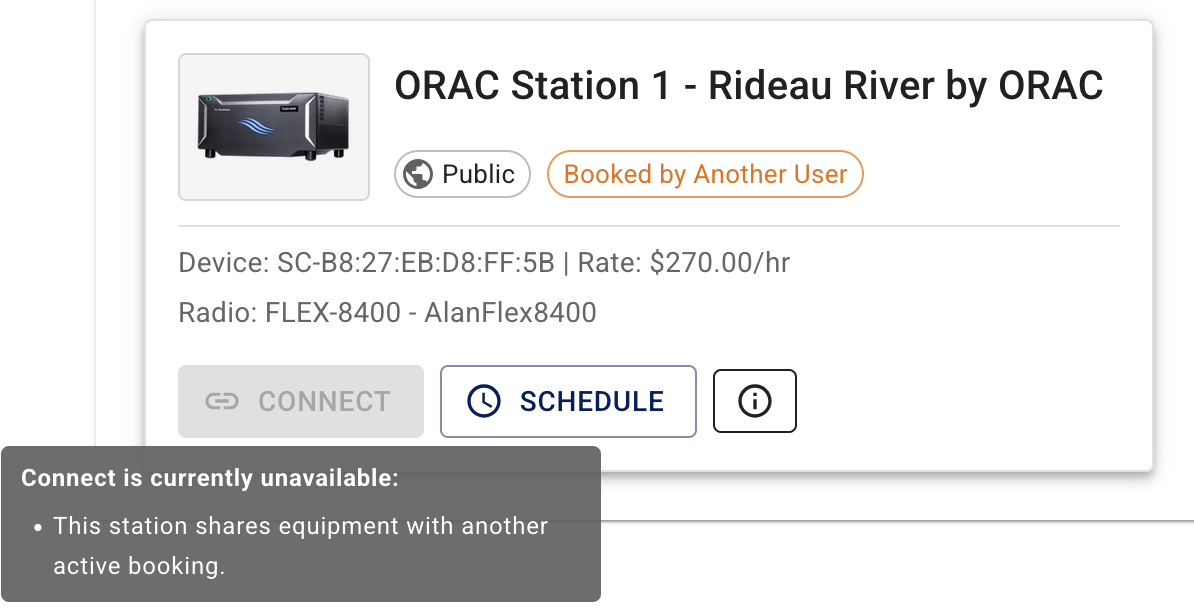
Available Now: the station is ready for immediate use (within published hours, radio online, no blocking conflict, and other connect checks pass).Connected: you have an active radio connection on this offering for your current booking.Reserved: you have a booking in its scheduled window but are not currently connected—you can press Connect when ready.Radio Offline: a required radio device for the offering is offline to the hub.Station In Use: another operator holds an active session on this offering.Booked by Another User: a booking on shared hardware blocks this offering (another offering using the same radio is booked for now).Outside Available Hours: the offering's published availability window does not include the current time.Credits Required: the offering is paid and your booking credits balance is zero or negative (free$0offerings do not require credits to book).No Client Available: you have no paired iSR Client online and free to take a connection.Unavailable: a general "not connectable right now" state (check the card tooltip or disable reason when shown).
Profile and license prerequisites
Connect is disabled until your active (default) callsign includes country and license class, and the radio's location can be resolved for license control. Complete these in your profile before operating.
Connect vs Schedule
Most offering cards give you two main actions:
Connect: start operating now when the hub allows it.Schedule: open the Booking Calendar to reserve a future window.
If Connect is disabled, hover the button (or inspect the card) to see why (offline radio, outside hours, shared-device conflict, missing credits on a paid offer, incomplete license profile, and so on).
What Connect does (quick connect / on-demand)
When you press Connect without an existing scheduled booking, the hub creates an on-demand booking for the current 15-minute UTC block (from the snapped start of the block through the next quarter-hour boundary), then admits your iSR Client to the radio.
| Offering type | Auto-extend behaviour |
|---|---|
Free ($0) |
Off at create; enabled automatically after a live connection is established |
| Paid | Stays off until you turn it on before the window ends |
When you Disconnect from a quick-connect session, the hub ends that on-demand booking automatically (cancel/settle). You do not need a separate cancel step for a normal disconnect.
Scheduled bookings are different: disconnect only tears down the radio path—the calendar booking remains until you cancel, settle at end, or extend. See Auto-extend.
Reserved but not connected
If you already scheduled time and the window is active, the card may show Reserved with Connect enabled. A dropped ISR client path does not cancel the booking—you can Connect again while the window is still valid, subject to device online status and license control.
Auto-extend (when you're in a session)
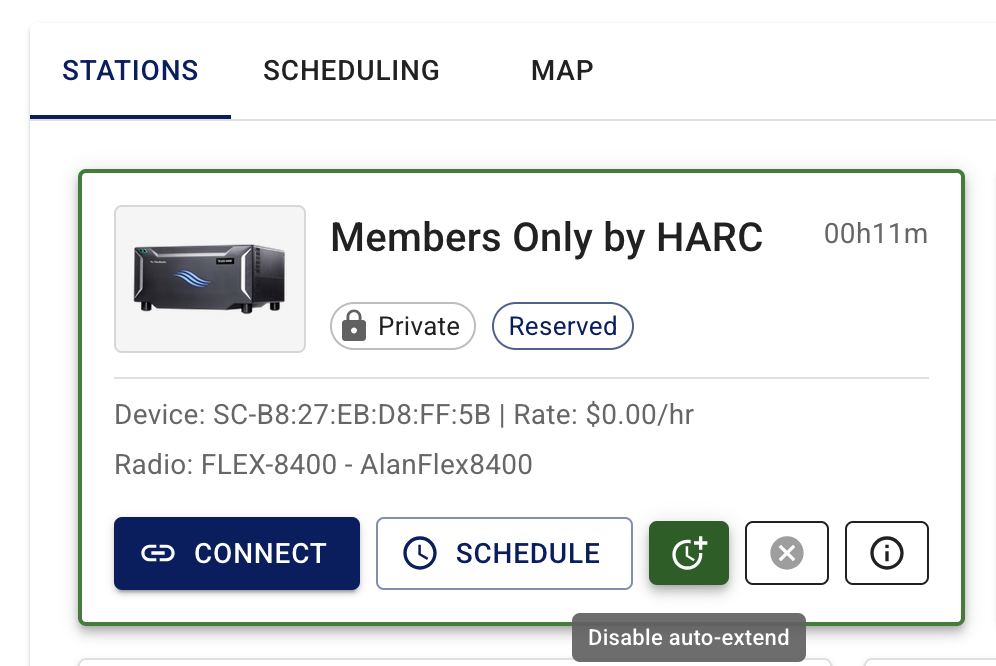
When you are actively using an offering, the card can show a remaining-time countdown and controls related to the current session (for example, auto-extend and cancel).
See Auto-extend for full behaviour. In short:
- Green toggle = consent, not a guarantee—the hub still checks rules at each UTC quarter-hour boundary.
- Extension stops when any item on the When auto-extend will not extend list applies (max duration, four extensions, adjacent bookings, and others).
Details: When auto-extend stops.
Cancel a session
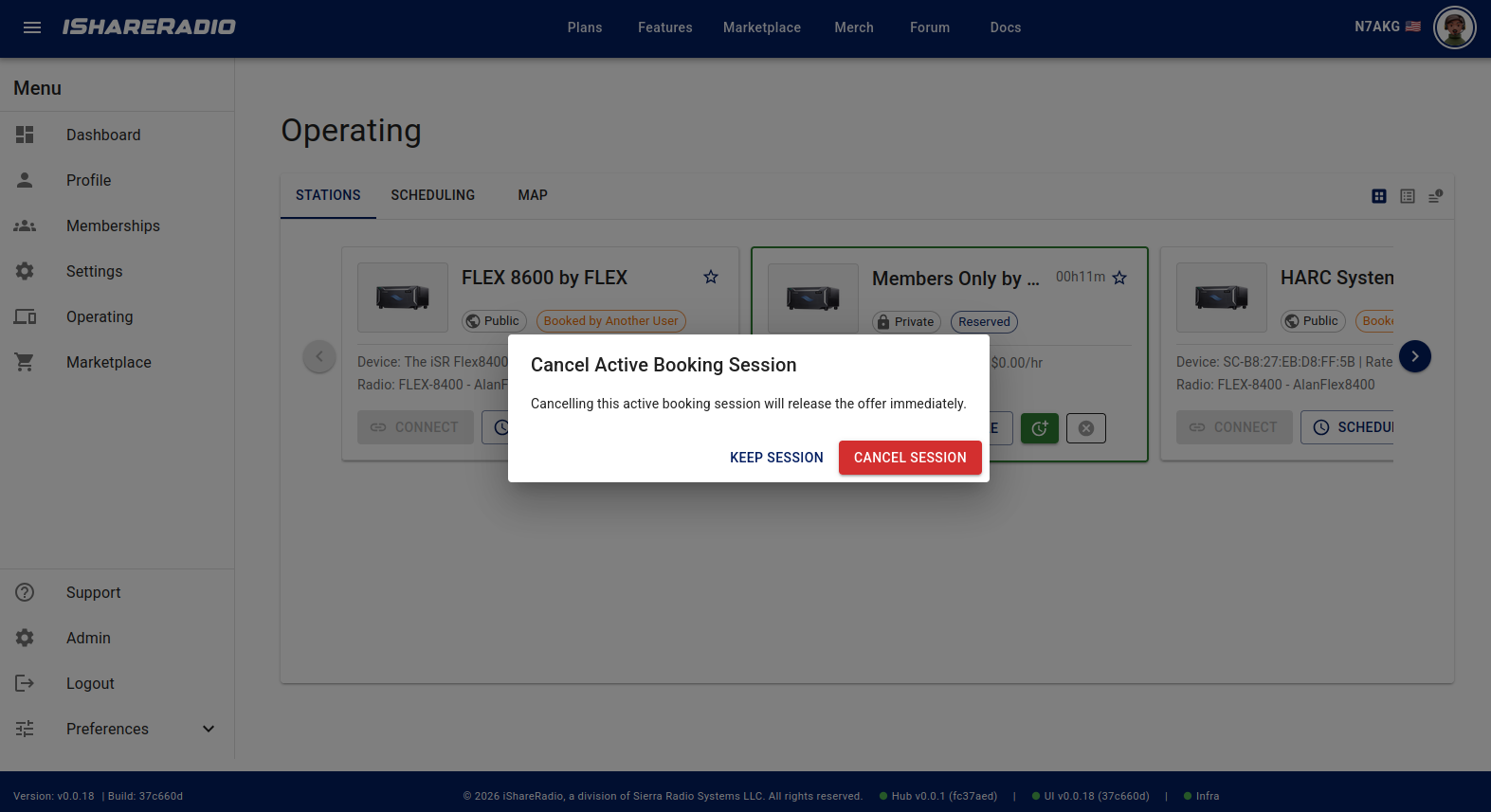
If you have an active scheduled session, you can cancel it from the offering card (X / cancel control).
- Cancelling ends access immediately and finalizes the session per the Booking Policy.
- For paid offerings, the cancel dialog warns you about charges based on booking rules (settlement uses quarter-hour rounding).
For quick connect (on-demand), a normal Disconnect already ends the booking; use cancel only when the UI exposes it for your session type.
Multiple iSR Clients
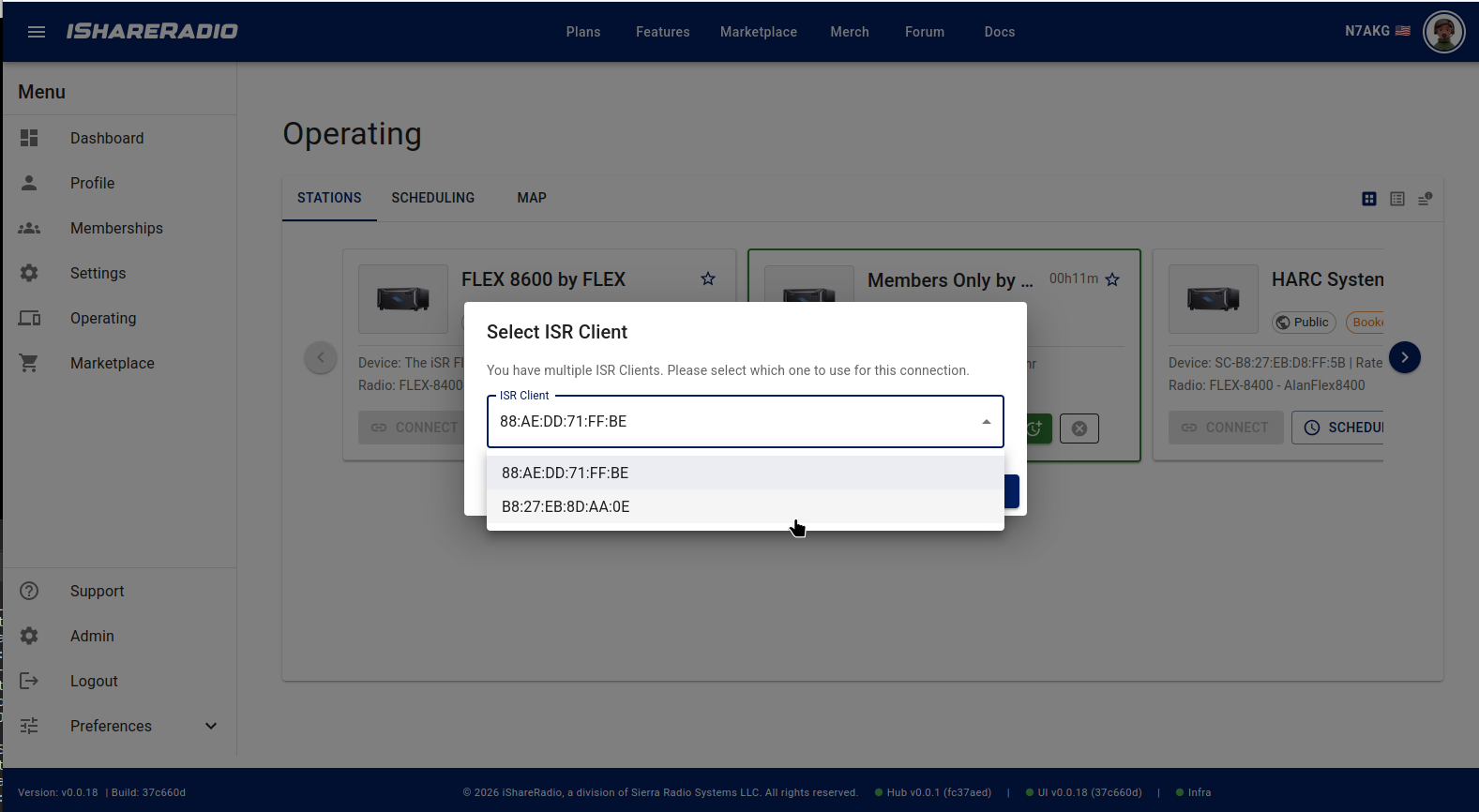
Your connection is made through an iSR Client.
- If you have one iSR Client paired, it's used automatically (when available).
- If you have more than one, you may be asked which one to use.
Personal notes
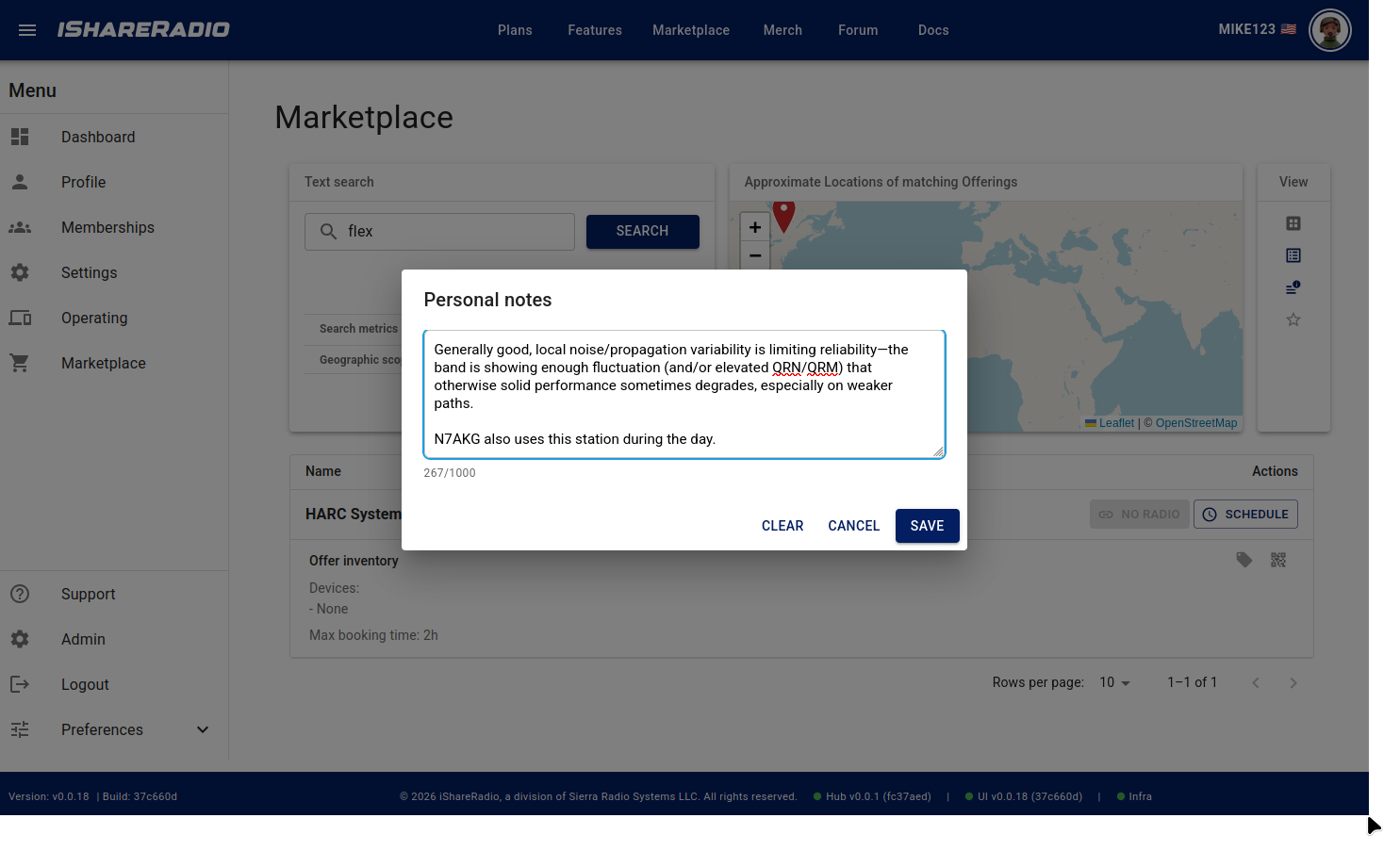
Offering cards can include Personal notes that are for your own reference (for example: station quirks, setup reminders, preferred bands/modes, or anything you want to remember next time).
QR sharing code
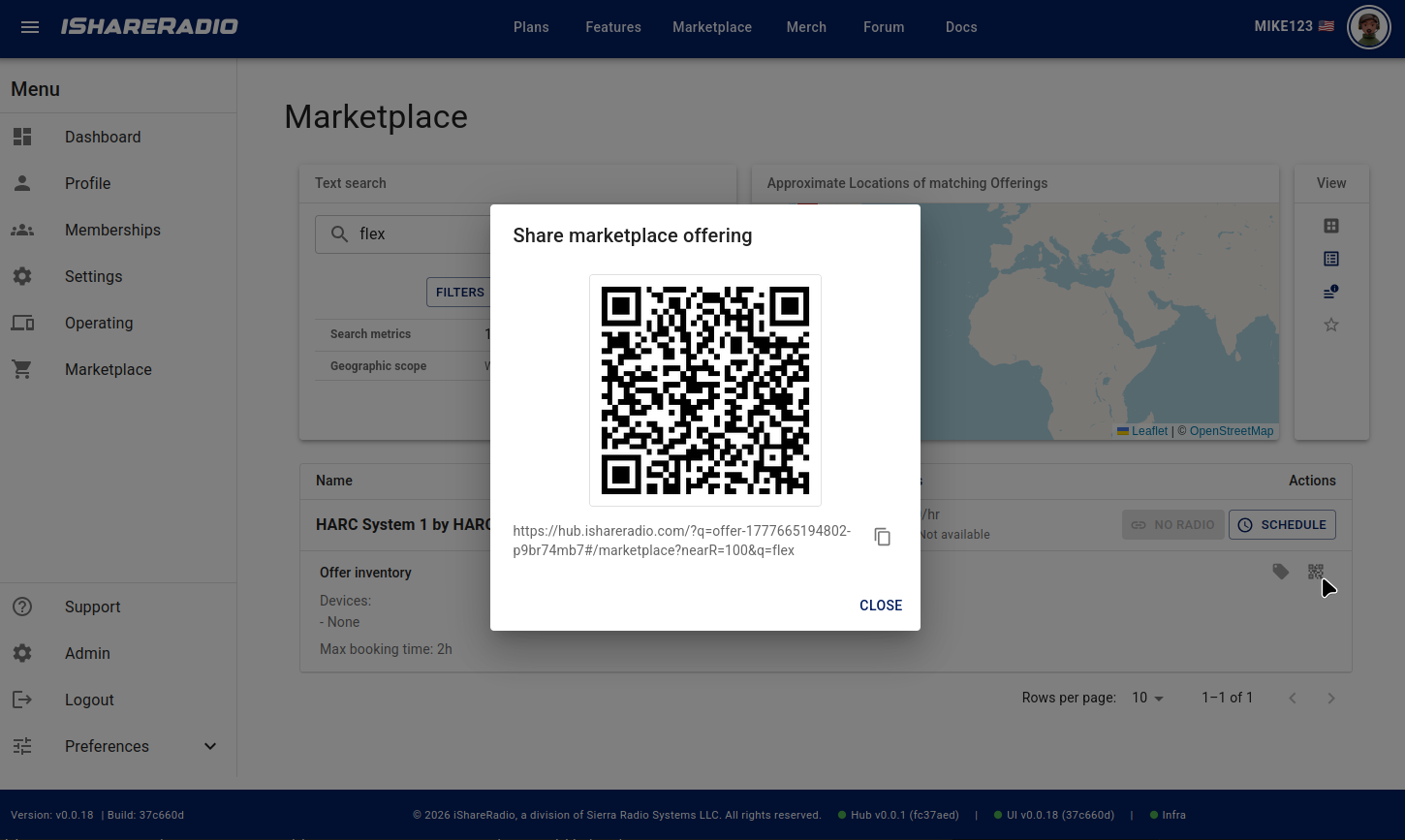
Offering cards can include a QR sharing code for quickly sharing an offering with someone else. Scanning the code should open the Marketplace to the same offering so the recipient can view details and, if allowed, connect or schedule.
Related pages
- Auto-extend — quick connect vs scheduled sessions, 15-minute extensions, and limits
- Booking Calendar — booking views, conflicts, and booking dialogs
- License Control — band/mode/power limits during operation
- Booking Policy — charging, cancellation, settlement, and on-demand rules