Things to Know before You Begin
There are three kinds of accounts in iShareRadio
- A person who wants to share their shack with only a few other hams.
- A person who is setting up an account for a club to share their shack with their membership.
- A person who has been invited to operate an individual's shack or club resources.
All of the above need to register for an account on iShareRadio.
Only if you plan to share your shack do you need to subscribe to a plan.
If you plan to share your personal shack, subscribe to a personal plan. You do not sign up for a club subscription or start a club.
If you are setting up an account to share a club, subscribe to a club plan. You do this when you create a club. You do not also need to subscribe to a personal plan. You will be the owner of the club account and have access to its resources like any member. Ownership can be transferred after the club has been set up.
If you have been invited to join a personal or club account, you do not sign up for any plans. The service is free for your use.
The Client
The iShareRadio client is a small application that runs on any PC on the same network as your SDR or Maestro. It is a transparent proxy back to the shack equipment shared in the Offering.
It must run on the same network (LAN) as your SDR. For example, at home you may have the client running on a small Raspberry Pi and use SmartSDR, CAT, and DAX on a Windows PC on the same home network. If you take a laptop to a cafe, you also need to install and run a client on that laptop so it and the SDR are on the same network.
You can have multiple clients installed and paired to your account, but only those on the same network as the SDR will work. When you use the iShareRadio website to Connect, you are given a list of clients paired to your account. Select only the one on your SDR's network.
If you join a club after you have paired a client to your account, you need to edit that client on the website and associate it with the new club or clubs. You do not need to uninstall it. Edit it and select the clubs you want to use the client with.
The Website's Host and Club Tabs
When you are an owner or member of a club, you will see a tab in the upper right of the website. Select that tab when you plan to do anything with that club. This includes administration tasks such as setting up radios and offerings, or operating as a club member.
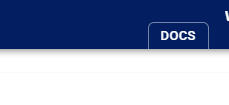
If you are not a member of a club, the only tab you will see in the upper right is Docs.
If you are a member of a club and do not share your own radio, the tabs in the upper right of the page will look like this example. Use the club's tab to operate that club's offerings, and the Shack tab to manage your account.
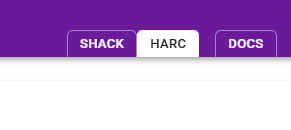
If you are a member of a club and also share your radio, the tabs will look like this example. Use the club's tab to operate that club's offerings, and the Host tab to manage your account and your personal sharing.