Saved radio state
On an Offering's Permissions tab, the owner can save the radio's current setup as a set of profiles on the radio. When an operator connects, those profiles are loaded, so each session starts from the same state.
Turn on Start each connection from saved radio state, then press SAVE CURRENT RADIO STATE. A guest cannot overwrite this saved state. Connect to the radio with SmartSDR before saving.
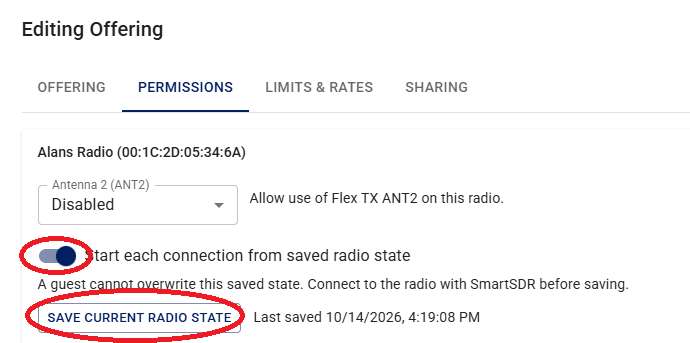
Save the current radio state
- Connect to the radio with SmartSDR and set it up the way operators should find it. Stay connected.
- Edit the Offering and open the Permissions tab.
- Turn on Start each connection from saved radio state.
- Press SAVE CURRENT RADIO STATE.
The page shows Last saved with the time of the save. To change the starting state later, connect again, set the radio the way you want, and save again.
Profiles on the radio
Saving writes special profiles onto the radio. Their names start with iSR-. In SmartSDR they appear in the Profiles menu, for example iSR-g-103c1d0a and iSR-g-2e7ab402.
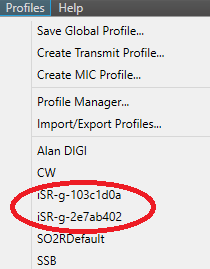
When an operator connects, these profiles are loaded and the radio opens in the state you saved. During the session the operator can create their own profiles and switch to them. They cannot change the iSR- profiles. The next connection loads the saved state again.
See also Creating a Friends and Family Offering, Creating a Club Offering, and Operating a Friend's Radio.