MacroDeck
A macro is one press that does a step you would otherwise do by hand. On MacroDeck, that press is a button on your operating session: tune the radio and set the mode, send a CW message, switch an antenna, log a contact, or open a page you use while you operate. The steps stay on the button, so you do not retype them each time you change bands or start a contact.
The pad is saved on your account. The same buttons are there the next time you operate.
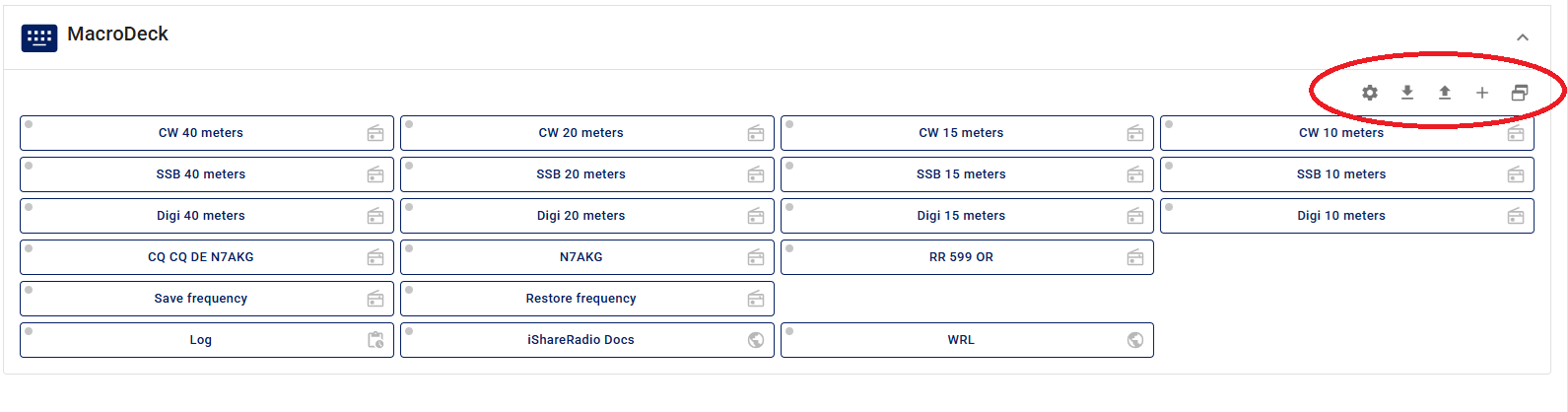
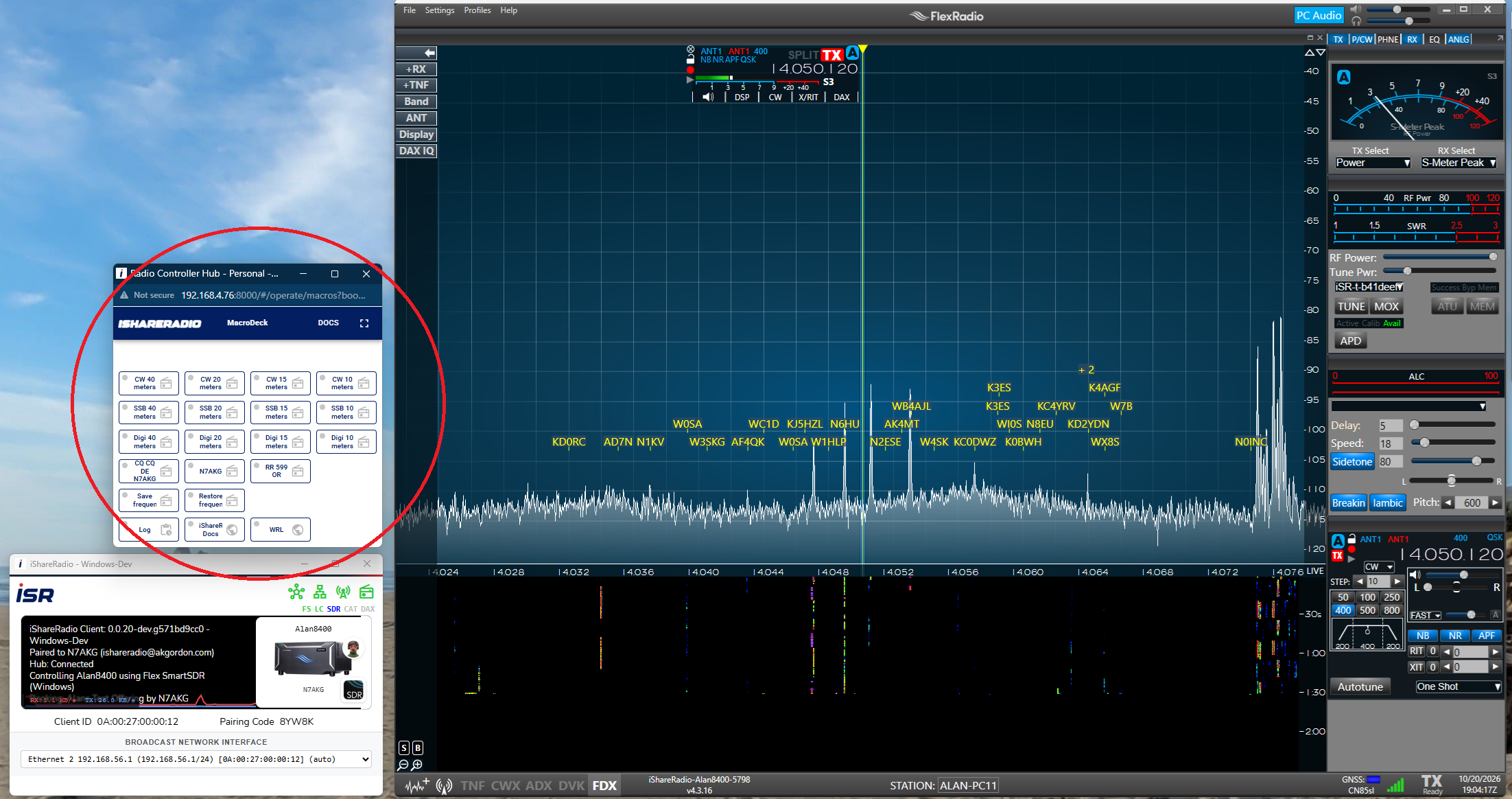
Once you have opened a session, open MacroDeck on the session panel. Tear off opens the pad in its own window. Full screen fills that window.
Connect to the SDR first
Radio, Save frequency, and Restore frequency need a connected SDR. That can be SmartSDR, AetherSDR, or RimuSDR. Until the SDR is connected, those buttons say Connect to the SDR first.
Station controller, web page, and webhook buttons do not wait on that connection.
Get a pad and Edit Your Pad
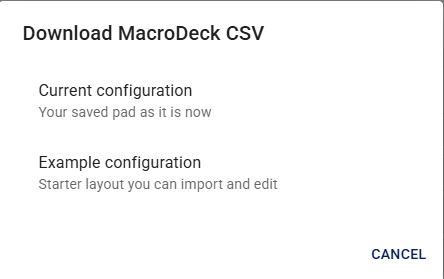
Download CSV downloads the pad you have now or a sample pad with example entries. Neither download changes the pad until you import.
Edit the file, then Import CSV. Import replaces your current pad with that file.
You are limited to a maximum 8 x 8 pad.
There is some checking of the CSV on Import but a lot is up to you to test your own set of macros. For example, if you include Station Controller entries and do not have a Station Controller the Import will fail.
You can also edit on the website. Press the settings wheel to change buttons there. A pad can be edited, saved, and loaded while you are operating.
Share the CSV file with friends and family. But be aware that when they import it, it replaces the pad on their account.
Button types
Radio
A radio button sends one or more commands, one command per line. Command names and format are in the FlexRadio SmartSDR TCP/IP API. For example:
A CW message looks like cwx send CQ CQ DE xx1xx.
License control still applies. A command that would leave the offering's band plan is not sent.
Save frequency and Restore frequency
Save frequency stores the frequency and mode you are on. Restore frequency returns to that snapshot. This is your own snapshot on this pad. It is not the offering's saved radio state, which the owner sets for every operator who connects.
Log
A log button sends a contact to an N1MM logger at address:port. When you press it, enter the callsign. Sent report, received report, and one exchange are optional.
Station controller
A station controller button drives one output on a controller in the booking. A relay or open-collector button toggles that output. A coax button selects that connector. Connector 1 is the first port.
The owner must grant Control for that output. See Station Controller in an Offering.
Web page
A web page button opens an https address in a new window or a new tab.
Webhook
A webhook button asks the hub to POST to an https address. The browser does not open that page.
Example CSV
The sample file also adds two antenna buttons and a webhook button. Replace SC-88:AE:DD:71:FF:BE with your station controller id, and 0x02 with the coax-switch module address, before you import those rows.
row,column,label,class,action,value,sc_device_id,module_dcn,value_type,channel
5,2,Vertical,station_controller,sc_set,,SC-88:AE:DD:71:FF:BE,0x02,coax_switch,0
5,3,EFHW,station_controller,sc_set,,SC-88:AE:DD:71:FF:BE,0x02,coax_switch,1
5,4,Notify,webhook,webhook,https://example.com/ishareradio/hook,,,,
Vertical selects connector 1. EFHW selects connector 2. Notify posts to the webhook address.