Auto-extend
Auto-extend lets an active booking session continue in 15-minute blocks after its current end time, without you opening the calendar again. It applies to both quick connect (Connect now) and scheduled bookings.
Green auto-extend = consent, not a guarantee
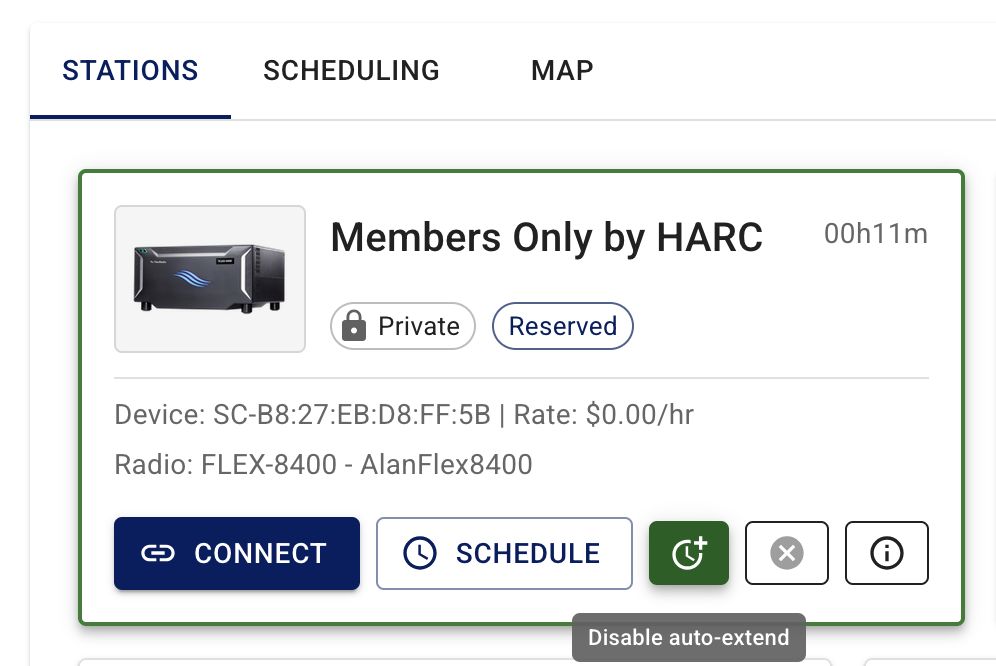
When the auto-extend control is on (shown green in the UI), that only means you consent to automatic extensions. The Hub still evaluates rules at each quarter-hour boundary. If the next 15-minute step is not allowed, your session ends at the current scheduled end and radio control is torn down—you may need to Connect again if the booking is still valid, or accept that the session is over.
A green toggle does not mean “always add 15 minutes with no re-login.” It means “try to add 15 minutes if the rules allow it.”
Turning auto-extend on does not instantly change your end time in most cases. The hub evaluates extension shortly before each UTC quarter-hour boundary (about 15 seconds ahead of :00, :15, :30, and :45 UTC) when your session's scheduled end matches that boundary (see How time blocks work).
When auto-extend will not extend
Auto-extend will not add another 15-minute block when any of these apply:
- Auto-extend is off — you turned the toggle off, or never enabled it (paid quick connect stays off until you turn it on).
- Four extensions already used — each session allows at most four successful extends (manual extends count toward the same cap).
- Maximum booking duration reached — the session already spans the offering’s max from start to end (common case: a full 90-minute booking on a 90-minute max offer).
- No extension room left — even with fewer than four extends, the next 15-minute step would exceed the max duration cap.
- Adjacent scheduled booking on the same offering — someone else (or you) already reserved the next block on that station.
- Shared-device conflict — another booking on a different offering that uses the same radio overlaps the proposed extension window.
- Outside published availability — the extended window would fall outside the offering’s allowed hours or slots.
- Offer disabled — the owner disabled the offering; extensions are blocked.
- Session no longer pending — the booking is settled, cancelled, or otherwise not an active pending session.
- Booking credits problem (paid offerings) — there is no active credit reservation, or credits cannot cover the extended window.
If auto-extend is on but the next extend fails for any reason above, the Hub ends your session at the current scheduled end and tears down radio control. Details for each item: When auto-extend stops.
Where you control it
While you have an active session, the offering card on Operating → Stations (or the Marketplace when you are in use) can show:
- a remaining-time countdown
- an auto-extend toggle (on/off)
- cancel controls to end the session
If you do not see these controls, you may not have an active session yet—connect first, or wait until your scheduled start time and press Connect.
How time blocks work
iShareRadio books radio time on a quarter-hour grid in UTC:
:00–:15,:15–:30,:30–:45, and:45–:00
The calendar, quick connect, and auto-extend all use this same grid. Your browser may display local time, but extensions are evaluated on UTC quarter-hour boundaries.
When auto-extend succeeds, the session end moves forward by one 15-minute step (for example, from 3:00 to 3:15 UTC). The Hub updates your booking record and, when you are connected, sends an update to the iSR Client so the session timer moves forward without a new login—SmartSDR, AetherSDR, or other clients stay on the same booking.
Quick connect (Connect now)
Quick connect creates a booking for the current 15-minute block and connects you immediately.
Default behaviour
| Offering type | When auto-extend turns on |
|---|---|
| Free ($0) | Off at quick-connect create; the hub enables auto-extend automatically after you establish a live radio connection (per Booking Policy §4.2) |
| Paid (booking credits required) | Off until you turn it on yourself (before the current window ends if you want extensions) |
With auto-extend on, the Hub tries to book you into the next 15-minute block when the current one ends, then again at each following boundary, until a stop condition applies.
When you Disconnect from a quick-connect (on-demand) session, the Hub ends that booking session automatically (cancel/settle). You do not need a separate cancel step for a normal disconnect. Pre-scheduled bookings behave differently—see Scheduled bookings.
Deep dive: Operating a Friend's Radio.
Scheduled bookings
Scheduled bookings start with the start and end times you chose on the Booking Calendar. You connect when the Hub shows your booking as Reserved or ready.
Default behaviour
| Offering type | Auto-extend when booked |
|---|---|
| Free ($0) | On by default |
| Paid | Off by default |
You can change auto-extend at any time while the session is still active—including after you have connected and started operating. You do not need to set it when you first create the booking.
Extending past your original end time
If auto-extend is on and rules allow it, the session can run beyond the end time you originally scheduled:
- You operate through your booked window (for example 2:00–3:00).
- Shortly before each UTC quarter-hour boundary, the Hub evaluates sessions whose end time matches that boundary.
- If extension is allowed, the end moves forward by 15 minutes (for example 3:00 → 3:15).
- Your offering card countdown and the iSR Client session timer update to the new end.
If you enable auto-extend in the last few minutes before scheduled end, the Hub may try an immediate extension so you are not stuck waiting for the next boundary tick.
If auto-extend is off, the session ends at the current scheduled end. The Hub tears down control and settles the session per the Booking Policy.
Disconnecting from a scheduled booking only tears down the radio path—the booking remains until you cancel, settle at end, or extend.
When auto-extend stops
Each automatic extension must pass Hub checks. The quick list above summarises every case; the sections below explain each one in more detail. If auto-extend is on but the next extension cannot be applied, the Hub ends your session at the current boundary (disconnect at scheduled end)—it does not leave you connected without a valid booking.
1. Maximum number of extensions (four per session)
The Hub allows at most four successful extensions on a single booking session (manual extends count toward the same cap).
| Extensions used | Effect |
|---|---|
| 0–3 | Another 15-minute step may still be allowed (if other rules pass) |
| 4 | No further automatic extensions on this booking |
Each successful extension adds one 15-minute block. In the best case—when nothing else blocks you—that is up to four extra 15-minute blocks (up to one additional hour) beyond your original scheduled end, but only if the offering’s maximum booking duration also allows that total span.
Four extensions in practice
Original scheduled end 3:00 UTC, auto-extend on, all rules pass:
- 3:00 → 3:15 (extension 1)
- 3:15 → 3:30 (extension 2)
- 3:30 → 3:45 (extension 3)
- 3:45 → 4:00 (extension 4)
After the fourth extension, auto-extend cannot add a fifth block on the same booking.
2. Maximum booking duration (common training pitfall)
Many offerings set a maximum booking duration (for example 90 minutes). That limit applies to the entire session from start to end, including any auto-extensions—not “90 minutes plus auto-extend.”
Booking a full 90-minute slot
If the offering maximum is 90 minutes and you schedule 2:00–3:30 (the full allowed span), you are already at the duration cap. Auto-extend cannot add another 15 minutes—even with the toggle green. At 3:30 the Hub ends the session at the boundary.
This matches the common training scenario: “I reserved the full 90 minutes, auto-extend was on, and I was dropped at the end.” The system behaved as designed; the calendar booking used all allowed duration.
Planning tip: To allow roughly “90 minutes plus maybe one extra block,” schedule less than the maximum (for example 75 minutes on a 90-minute-max offering) and leave auto-extend on. Alternatively, ask the offer owner whether a higher maximum duration is appropriate for your use case.
| Offering max duration | You schedule | Auto-extend at boundary |
|---|---|---|
| 90 minutes | 75 minutes (e.g. 2:00–3:15) | May extend toward 3:30 if no conflict |
| 90 minutes | 90 minutes (e.g. 2:00–3:30) | Cannot extend past 3:30 |
| 120 minutes | 90 minutes | Room for extensions until max or four extensions |
3. Adjacent or overlapping bookings (someone else reserved the next block)
Auto-extend does not override another operator’s scheduled reservation.
The Hub blocks an extension when the proposed next 15-minute window would conflict with:
- another booking on the same offering, or
- a booking on a different offering that shares the same radio device (shared-device conflict)
Typical situations:
| Situation | What happens |
|---|---|
| You use quick connect; someone else scheduled the next 15-minute block | Your session ends at your current boundary; their reservation takes the radio |
| Your session ends at 3:00; another user’s booking starts at 3:00 on the same station | Extension to 3:15 is not allowed—you stop at 3:00 |
| You scheduled 2:00–3:00 with auto-extend on; a club member scheduled 3:00–4:00 | You cannot extend into their block; you disconnect at 3:00 |
The scheduler may show anonymous busy time for conflicts (you may not see who booked the adjacent slot). See the Booking Policy and Booking Calendar.
Need a guaranteed window?
Schedule the full time you need on the calendar. Use auto-extend for extra time when you are still operating and the station stays unreserved—not as a substitute for booking ahead or holding time against other schedulers.
4. Other stop conditions
| Condition | What it means for you |
|---|---|
| Available hours | Extended time must stay inside the offering’s published availability windows |
| Offer disabled | The owner disabled the offering; extensions are skipped and active control may end |
| Auto-extend off | You turned the toggle off—no further automatic extensions |
| Not connected at boundary | If auto-extend fails at the boundary, the hub settles the booking at the scheduled end and tears down any active radio control. You are not left operating without a valid session—even if you had disconnected earlier, the booking row ends at the boundary when extension is blocked |
| Booking credits | Paid sessions need an active credit reservation; extension can fail if credits cannot cover the extended window |
What you experience at the boundary
When extension succeeds (connected)
- Same booking—no new calendar reservation required.
- Session end moves forward 15 minutes.
- iSR Client receives an updated end time; no re-login for a normal extend.
- Countdown on the offering card updates.
When extension fails (auto-extend on but rules block it)
- Session ends at the current scheduled end (hard stop at the quarter-hour boundary).
- Radio control is torn down if you were connected.
- The hub settles the booking at that boundary when extension is rejected—it does not leave a pending booking running past the scheduled end while auto-extend was on but blocked.
After a failed extend:
- You cannot continue operating on that booking past the boundary.
- If no one else holds the next slot, you may schedule or Connect (quick connect) again for a new window.
Quick connect vs scheduled after a drop
Quick connect: disconnect ends the on-demand booking; a later Connect may create a new booking for the current block.
Scheduled: disconnect leaves the booking in place until cancel/settle/end; Connect again reuses the same booking if it is still active and not conflicting.
Paid offerings and settlement
For paid sessions, charges follow the Booking Policy when the session settles.
- Settlement uses the final booked window, with quarter-hour rounding as published in policy.
- Extending the session (automatically or manually) can increase what you are charged if you operate into additional blocks.
- Keep enough booking credits before you book; extensions do not bypass credit rules.
Free ($0) offerings still settle with a zero charge.
See also:
Ending your session cleanly
When you are finished operating:
- Press Disconnect to release radio control.
- For scheduled bookings with time remaining, use cancel (the X on the offering card) if you want to release the reservation for others.
If you only disconnect but leave a scheduled booking active, auto-extend can keep blocking the radio until the session ends or settles.
Quick reference
| Situation | Typical auto-extend default | Can extend past original end? |
|---|---|---|
| Quick connect, free offering | Enabled after live connect | Yes, if stop conditions allow |
| Quick connect, paid offering | Off until you enable | Yes, if stop conditions allow |
| Scheduled booking, free offering | On at booking | Yes, if stop conditions allow |
| Scheduled booking, paid offering | Off until you enable | Yes, if stop conditions allow |
| Full 90 min on 90 min max offering | Toggle may be green | No—duration cap |
| Next block reserved by another user | Toggle may be green | No—conflict at boundary |
| Four extensions already used | Toggle may be green | No—extension cap |
| Auto-extend off | — | No—session ends at current scheduled end |
Training scenarios (SSDR / AetherSDR)
| Goal | Recommended approach |
|---|---|
| Operate exactly 90 minutes, then stop | Schedule 90 minutes; turn auto-extend off or expect disconnect at end |
| Operate about 90 minutes, maybe 15 minutes more if free | Schedule 75 minutes on a 90-minute-max offering; leave auto-extend on; confirm no one booked the next block |
| Operate without losing the radio to a club member | Schedule your window on the calendar before connecting; do not rely on quick connect alone |
| Understand a drop at max duration with green auto-extend | Check: full duration booked? next block reserved? four extensions already used? |
Related pages
- Marketplace Page — offering cards, Connect vs Schedule
- Booking Calendar — reserve time in advance, busy slots, conflicts
- Schedule and operate (My Shack)
- Operating a Friend's Radio
- Book and operate (Club member)
- Booking Policy — authoritative rules (extension cap, conflicts, duration)