Install the Client Software
To operate, the iShareRadio client application must be running on a computer that is on the same LAN as the SDR. That can be the same PC as the SDR software. For example, the client can run on a Raspberry Pi while the SDR runs on Windows, or you can use a Maestro.
You need to install the client on at least one PC on the LAN with the SDR and pair it with your account. It is common to have multiple clients paired with an account, for operating from home or away on a laptop. If you are away, for example at a cafe, you need the client installed on the laptop along with the SDR software, because that LAN is not your home LAN.
We offer three platforms: Windows, Linux (x86-64), and Raspberry Pi (ARM64). A version of the client for the Mac, for both Intel and Apple silicon, will be coming out soon.
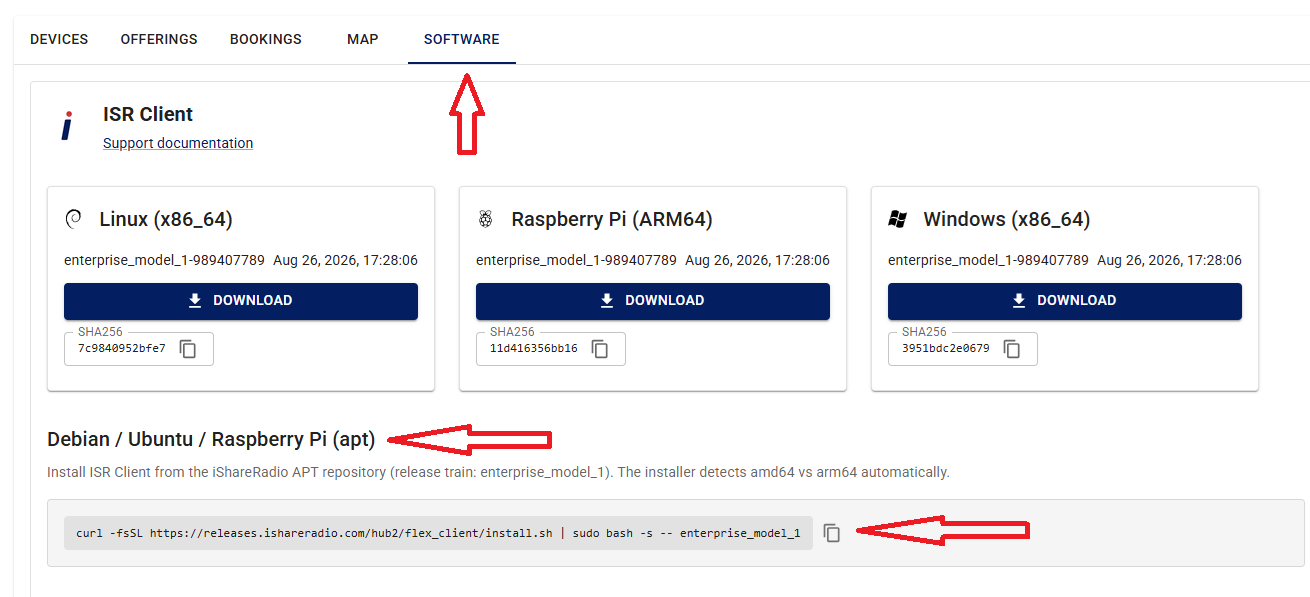
Windows
On Windows, download the zip file, expand it, and run the installer. If you already have an earlier version of the client installed, you do not need to uninstall it first. The installer cleans up the old version and installs the new one.
On Windows, you need to run the client before operating. Double-click the ISR icon on the desktop. If your version is out of date, a message in the client's window tells you that an update is needed. Download the latest version and install it as described above.
Linux and Raspberry Pi
On these two platforms, we strongly recommend the script we provide for install, setup, and automatic updating. Run this script in a shell on your PC, and the client is downloaded and started as a service. Check the status of the service with:
You can also run the client in GUI mode at the same time:
Pairing the Client to Your Account
Once you have the client installed and running on your LAN, you must pair it with your account before you can use it to operate. Your account can have multiple clients paired with it for the different situations in which you might operate.
To pair, go to Settings → Devices and select Add Device.
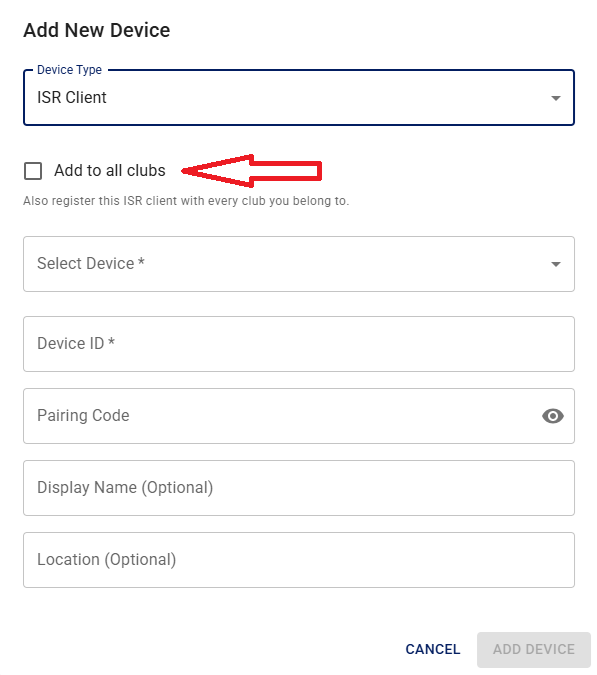
- Select ISR Client in the drop-down.
- If you are already a member of a club, select Add to All Clubs.
- Use the Select Device drop-down to choose the client you want to pair. The client needs to be running. The device ID and pairing code are then filled in automatically. You should not need to enter them manually.
- Give the client a display name so you can tell which one it is if you have multiple clients. You can also add an optional location descriptor.
When the form is filled in, press Add Device at the bottom of the dialog, and the client is added to your account. If the client is on and communicating with the iShareRadio server, a green circle indicator shows on the web page. You can also select the small + in the lower-left panel of the device to learn more about it.
Note, if you join a club after pairing a client with your account, you will need to go to that club's tab, and pair the device again using the same process shown above.